

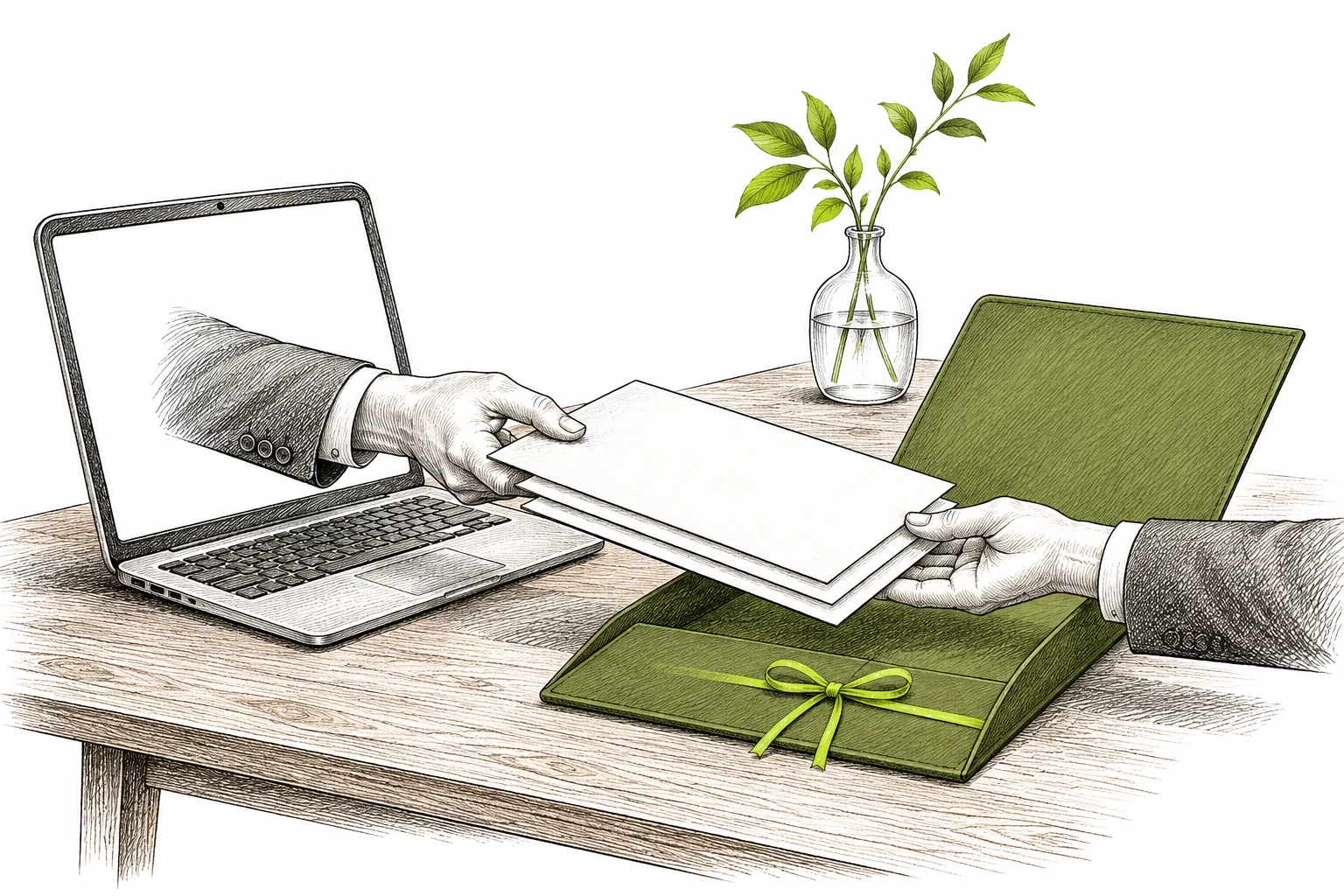
Until now, a shared conversation link showed only text. If the AI prepared a contract, a spreadsheet or a summary in the conversation, you had to send the file separately. Now you choose the files that travel with the conversation when you share it, and the recipient downloads them from the public page.
Choosing files
In the top right of the conversation, open Share conversation and choose Share conversation. The Share this conversation dialog lists Files to share: files created in the conversation or referenced by its answers, including documents the AI created while working on the virtual machine. Tick individual files or use Select all or Clear selection. The button then shows the count, for example Share with 3 files.
The recipient opens the link without signing in. They download the selected files from links in the answers, from citations and from the Sources tab. Files you did not select still appear in the text but cannot be downloaded.
How far the share reaches
A shared link captures the conversation at the moment you share it. When you keep working, the conversation shows a line labelled Shared up to this message. The recipient sees nothing below it. To share newer answers too, open the share dialog again and click Refresh share; the line moves to the end of the conversation. Revoke link cancels the share and removes the line.
The same menu also exports the conversation to Word and PDF if you prefer to send a document instead of a link.