

2 July 2026 — Connecting SharePoint and OneDrive
Tracked folders can now connect directly to SharePoint and OneDrive. Connect your OneDrive and multiple SharePoint sites at once and let the AI work with documents right in your company storage.
Tracked folders now connect directly to Microsoft OneDrive and SharePoint. The AI then works with your documents where they actually live — no manual downloading and uploading of attachments, with results saved straight back to your storage.
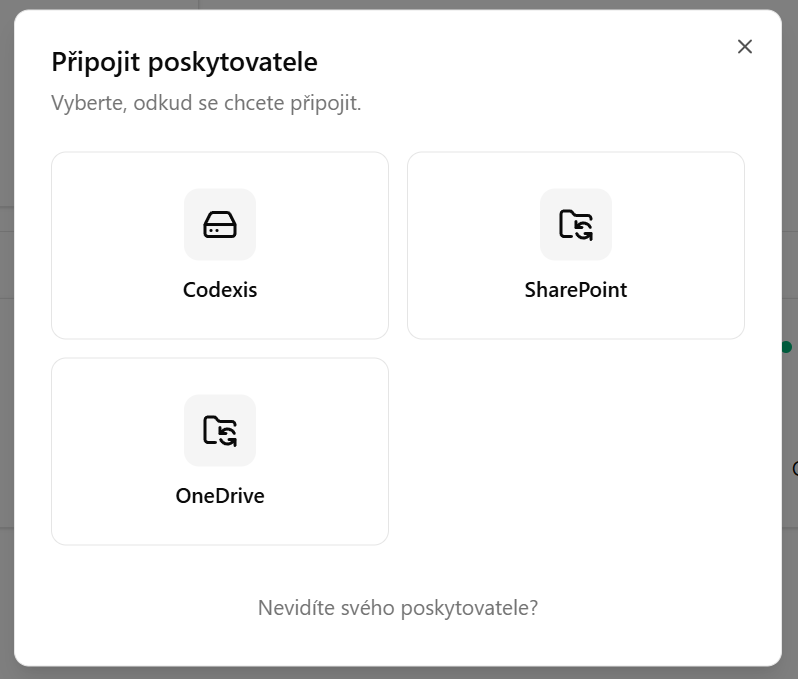
1. OneDrive
Connect your OneDrive to tracked folders and the AI works with it just like you do: it sees your files, reads them, edits them and creates new documents and entire folders — exactly as if you were creating them in your own OneDrive. Changes are written back, so both you and the agent always work over the same up-to-date data.
OneDrive contains only your own files, so it is connected as a whole — just pick OneDrive, name the connection and confirm. You don't need to choose a specific folder.
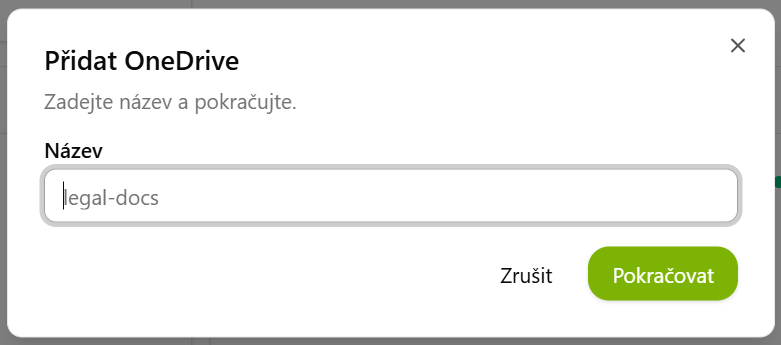
2. SharePoint
For SharePoint you enter a link to a specific site in the form https://…sharepoint.com/sites/…. You can connect several sites at once and then run a single conversation over all of them — the AI treats them as one shared workspace, so it can connect documents across projects and teams.
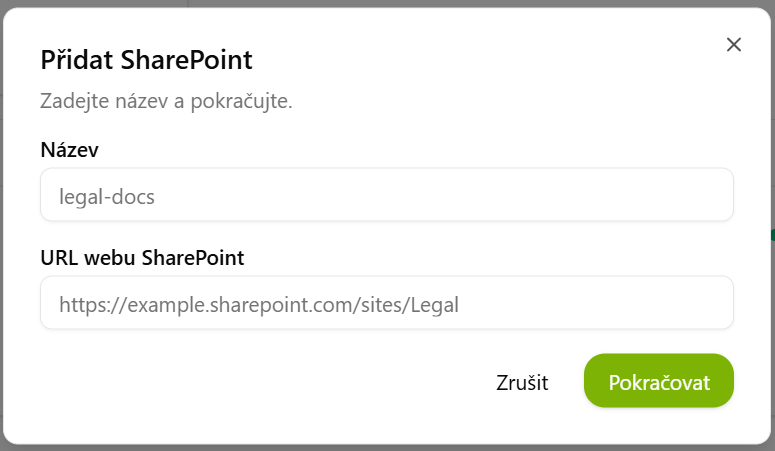
Why a specific site and not the whole SharePoint? In a larger organization, SharePoint can hold hundreds of thousands of documents across many sites and libraries. By entering a specific site URL (/sites/…) you explicitly define which space the AI may work with — it sees nothing outside it. This gives you full control over the data the agent can access. With OneDrive you don't need to worry about this, since it only contains your own files.
3 July 2026 — Plan mode and expanded Slovak case law
A new plan mode — for more complex tasks the agent first drafts a plan for your approval, and only then runs it. Slovak case law now draws directly from the Supreme Court, Supreme Administrative Court and Constitutional Court of the Slovak Republic.
30 June 2026 — New NRPZS and RZPRO add-ons, agent sharing, and more
Two new data add-ons (NRPZS, RZPRO), sharing of agents, skills and automations via a link, the assistant asking clarifying questions, new wizards, source citations, and a redesigned Land Registry.