

Companies and public bodies that work with CODEXIS AI over sensitive data often need to guarantee where the data is processed and that the model provider does not store it. Until now this was up to each user, who chose EU processing and the model in the chat settings. Now the license administrator sets these rules once for everyone. The setting applies in CODEXIS AI Chat and in CODEXIS AI Agent alike.
Requiring EU processing and zero data retention
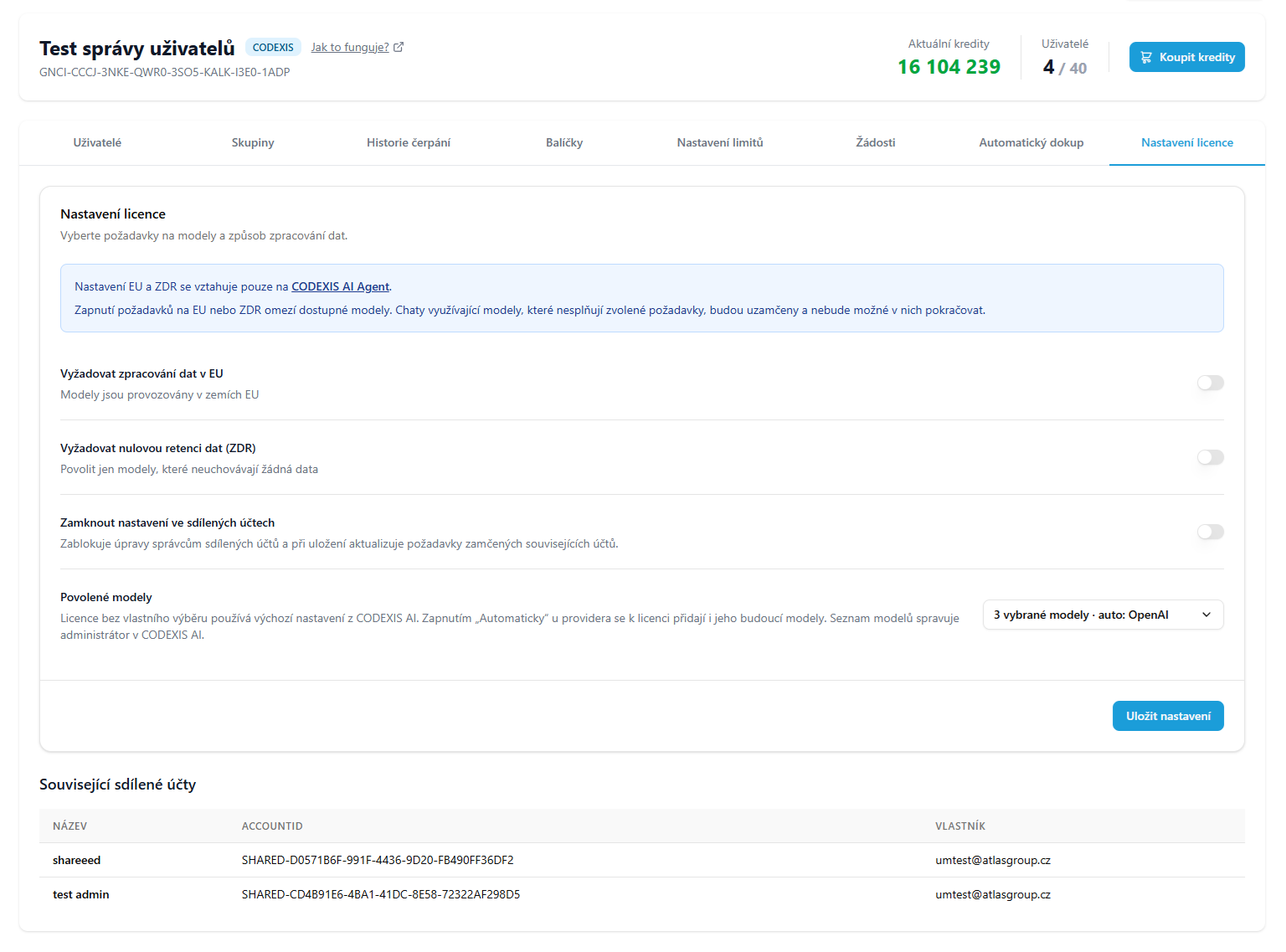
In the Credit Management application open the license and the License settings tab. You will find two switches. Require EU data processing ensures users only see models that run in European Union countries and whose requests and answers never leave the EU. Require zero data retention (ZDR) limits the choice to models whose provider stores neither requests nor answers. You can turn on both at once. Confirm with Save settings.
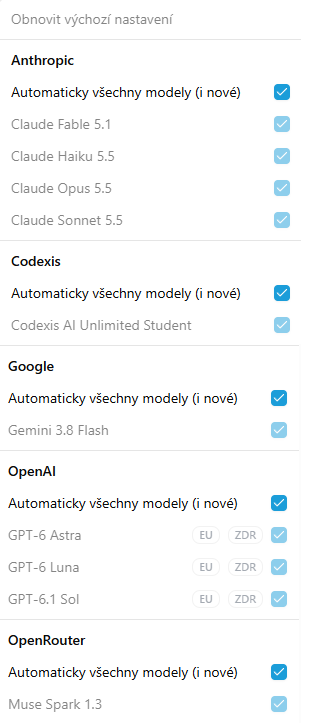
Both requirements are met by the OpenAI GPT models, for which we have zero retention and EU processing contractually agreed. Users see which guarantees a given model offers directly in the model picker, in the detail of each entry.
Choosing specific allowed models
Beyond the general requirements you can narrow the offer to specific models. On the same tab open the Allowed models picker and tick the ones users should have. For a provider you trust, tick Automatically all models (including new): this allows all of its current models and adds the ones we deploy later. The selection summary is shown right in the settings, for example 3 selected models · auto: OpenAI. Restore default settings returns the license to the default CODEXIS AI offer.
What users will see
Everyone on the license sees only what you allowed in the model picker. Models without the required guarantees are greyed out with an explanation of why they cannot be selected. Conversations already running on a model outside the policy are locked and cannot be continued, so switch the setting on knowing it also affects work in progress.
Shared credit accounts have their own EU and ZDR requirements managed by their administrator. With Lock settings in shared accounts you block their changes and the license requirements are written into those accounts as well.
The step-by-step guide is in the documentation on the Allowed model, EU and ZDR settings page.