


On a license with dozens or hundreds of users one administrator cannot handle everything. The new Groups in the Credit Management application split the administration among several people without splitting the credits. The license administrator creates groups by branch, department or team and names an administrator for each. The group administrator then sets limits for their members and handles their credit requests. Credits are still drawn from the shared license, a group has no credit account of its own.
Creating a group
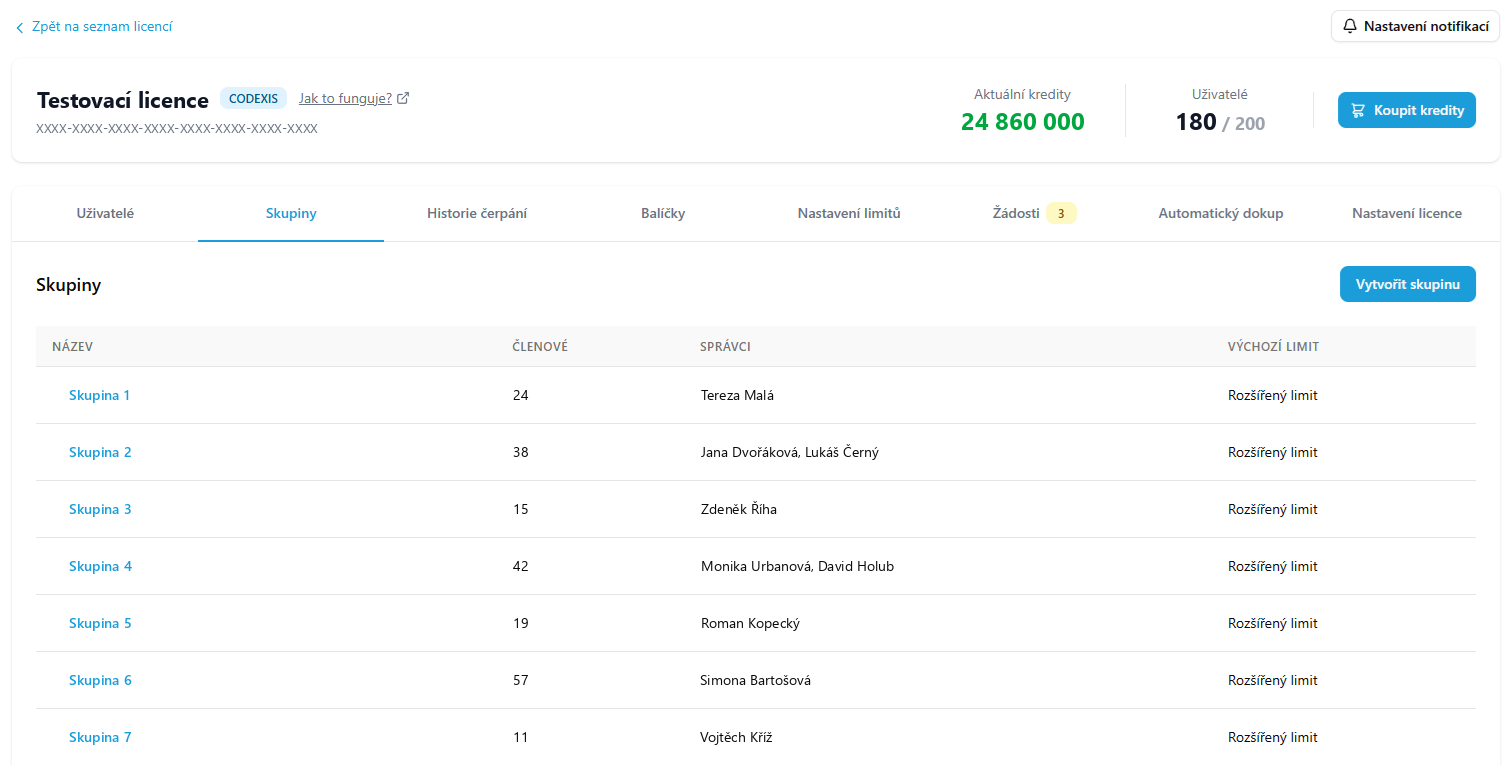
In the license detail open the Groups tab and click Create group. Fill in the Group name, enter the administrators in Emails of the first administrators and choose the Default limit that newly added members receive. The overview then shows all groups, their member count, administrators and default limit.
Members
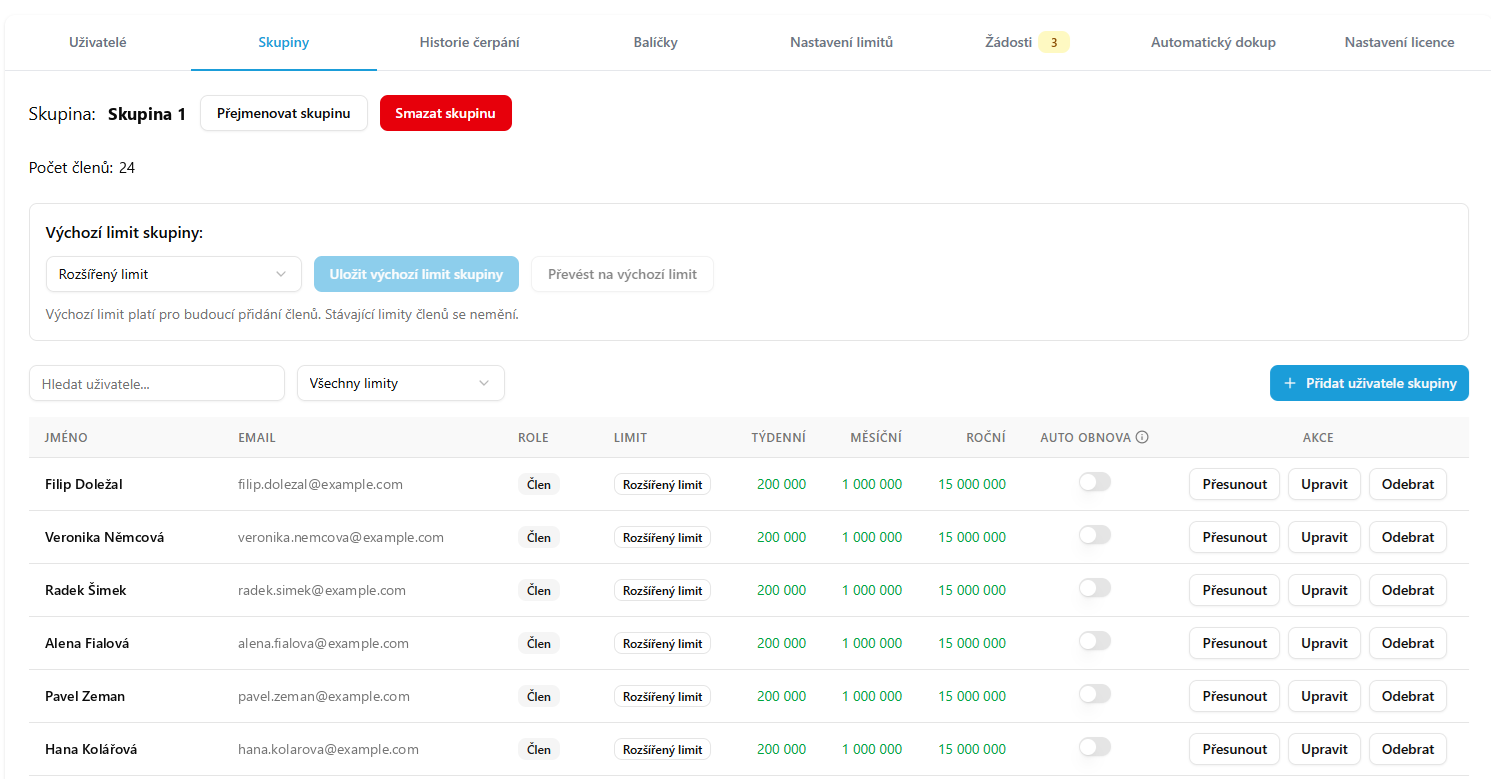
Click the group name to open its detail. Add users with Add group users, one by one by email or in bulk by importing a file, with a role and a limit. Only users already on the license can be added, and only the license administrator adds users to the license. Each user can be in one group only, and Move transfers them elsewhere. For each member you see their weekly, monthly and yearly limit.
What the group administrator sees
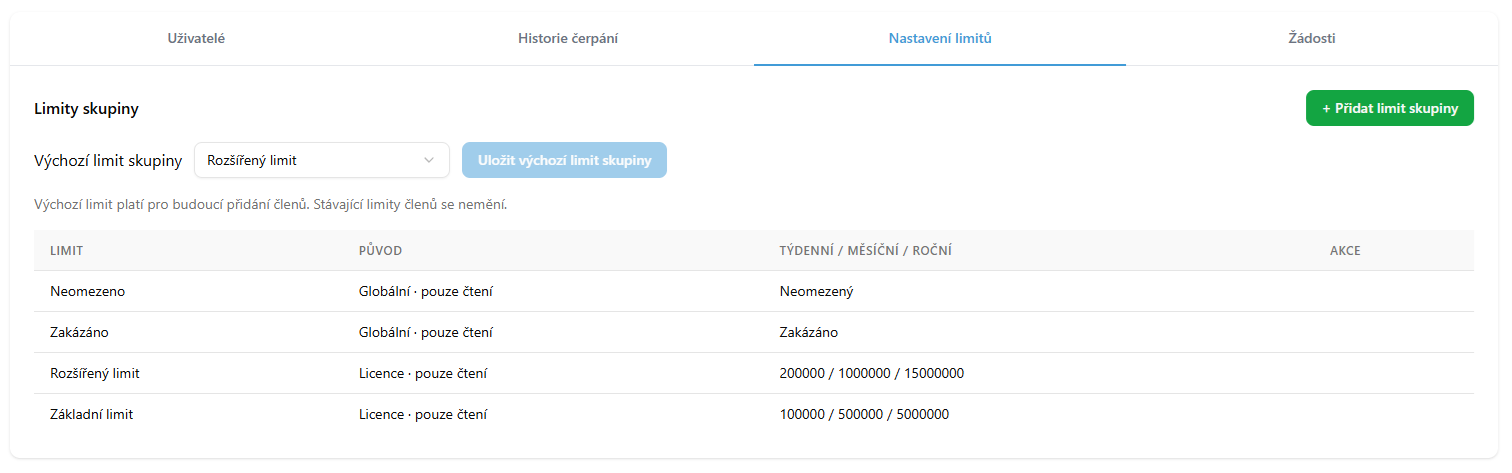
The group administrator sees the license in Credit Management only from the perspective of their group, with Group view shown in the header. They have the Users, Usage history, Limit settings and Requests tabs. They inherit the license limits read-only and create their own with Add group limit, valid only within their group. When a member runs out of limit, the credit request goes to the group administrator, who handles it just like the license administrator would. Usage history shows consumption for group members only, including a summary for the last 7 and 30 days and a CSV export.
Group or shared account
A group splits the administration, not the money. If a department should pay for credits from its own budget, use a shared credit account. The two can be combined.
The step-by-step guide is in the documentation on the Groups page.