

Several smaller changes in how files are handled add up to a different way of working with CODEXIS AI Agent over a case file. Here they are in one place.
Uploading a whole folder
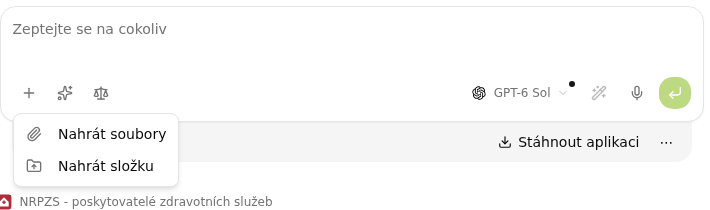
The + button in the input field offers Upload folder next to Upload files. You attach a whole case file or a folder of materials at once, subfolders included, in both Chat and Agent mode. The AI has all the documents available when answering and you do not have to pick them one by one.
Writing to project files
Until now a conversation in a project only read the project files. You can now allow it to write as well. When creating a conversation or an automation in a project, switch on write access and the AI can save the result of its work, for example an amended contract or a spreadsheet it created, directly among the project files. Without this permission the project stays read-only for the AI.
Connected storage for a specific conversation
You pick the connected OneDrive, SharePoint or network drive for a specific conversation. The selected connections appear in the chat header next to the folders connected from your computer, and the conversation works with them until the end. Folders from your computer connected through the desktop application remain available in Chat mode too.
Reading Office and OpenDocument files
Word, Excel, PowerPoint and OpenDocument files are read by the AI directly, with no conversion to PDF or text. Just attach the document or refer to it in a project or the Library.
The Library for permanent materials
Documents you use across all conversations belong in the Library. It is read-only for the AI and its contents are available everywhere.
Working with connected storage is described in the documentation on the Connecting storage and drives page, projects on the Projects page.