

Groups
Groups split a large license into smaller units managed by their own group administrators. Credits are still drawn from the license.
On a license with many users, one administrator does not have to manage everything. The license administrator divides users into groups and assigns each group an administrator. The group administrator then sets limits for their people and handles their credit requests. Credits are still drawn from the shared license, a group has no credit account of its own. On this page you create a group, fill it with users and learn what a group administrator can do in it.
Creating a group
The license administrator creates groups in the Credit Management application on the Groups tab of the license detail. The overview shows all groups, their member count, administrators and default limit.
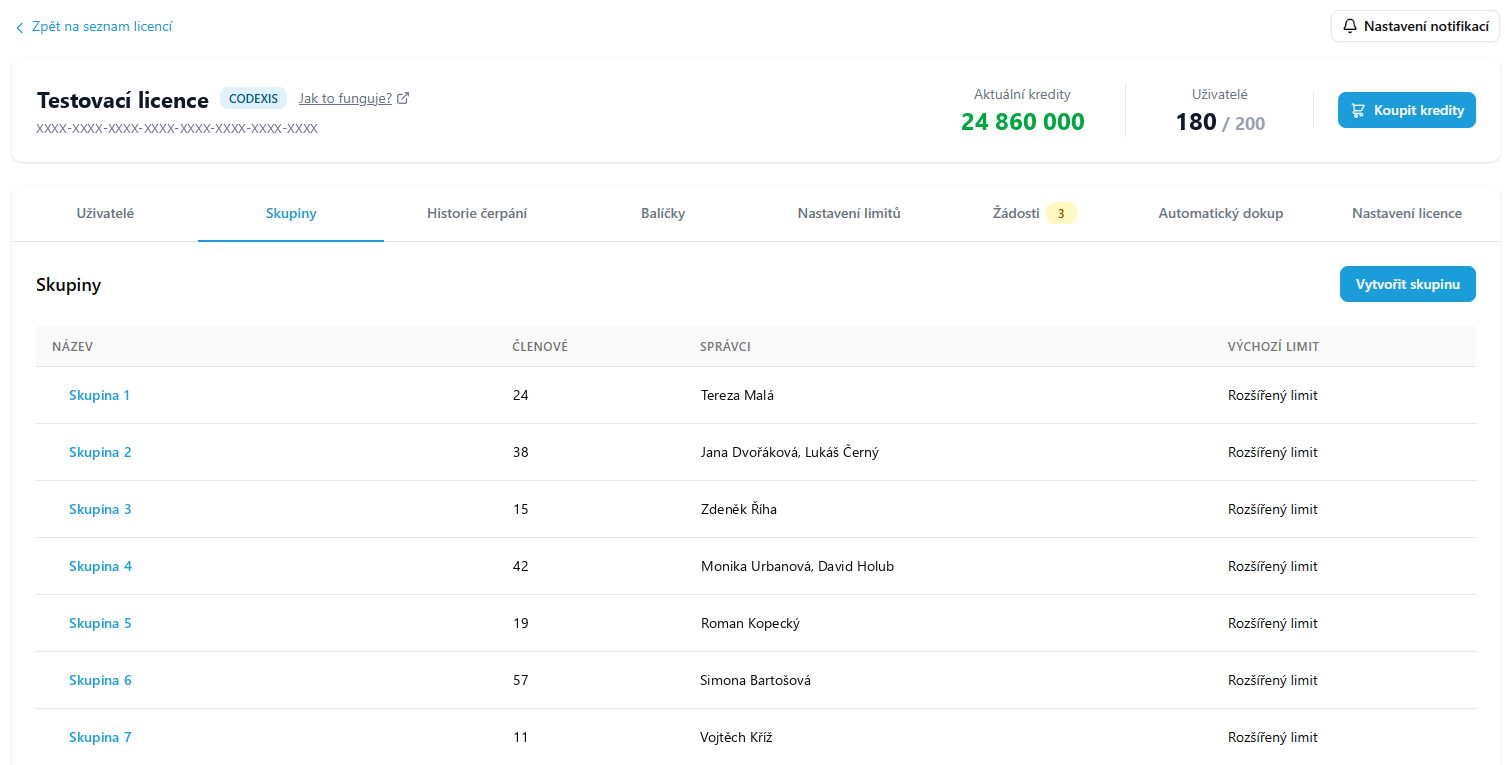
- On the Groups tab, click Create group.
- Enter the Group name.
- In the E-mails of the first administrators field, enter the e-mails of the group administrators. Separate multiple addresses with a comma, semicolon or new line.
- Select the Default limit that newly added members receive.
- Click Create.
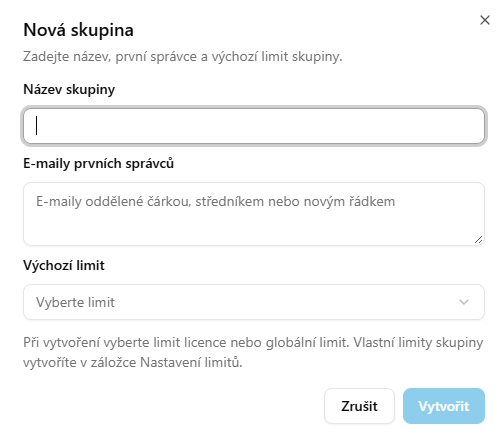
When creating the group, you choose from license limits and global limits. The group administrator creates the group's own limits later on the Limit settings tab.
Group members
Click a group name to open its detail. Here you rename or delete the group, change its default limit and manage members. The default limit applies to members you add from now on, existing members keep their limit. The Convert to default limit button applies the default limit to them as well.
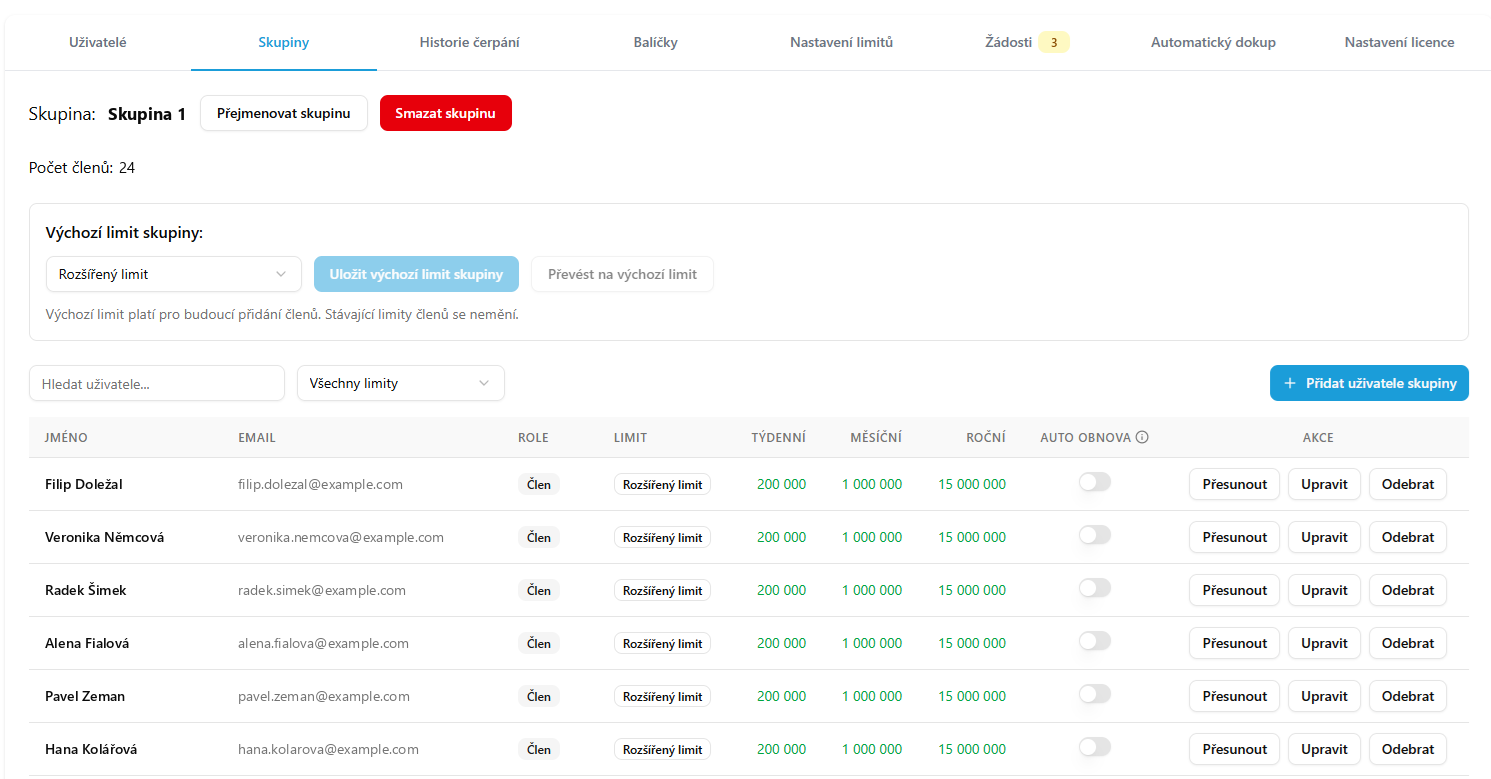
For each member you see their weekly, monthly and yearly limit. Move transfers the member to another group, Edit changes their settings and Remove takes them out of the group.
A user can belong to only one group. If you need them elsewhere, move them.
Adding users
Both the license administrator and the group administrator add users to a group. You can only add a user who is registered in CODEXIS, has already been added to this license and is not in another license or another group. Only the license administrator adds users to the license. A new colleague therefore registers first, the license administrator adds them to the license, and only then can you assign them to the group.
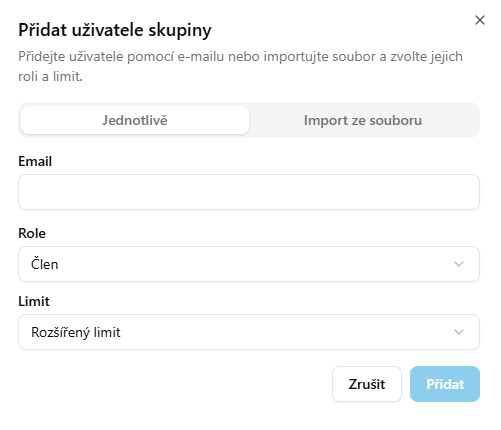
- In the group detail, click Add group user.
- On the Individually tab, enter the Email, or on the Import from file tab, upload a list of users.
- Select the Role and Limit.
- Click Add.
What the group administrator sees
In the Credit Management application, the group administrator sees the license only from the perspective of their group. The header shows Group view with the group name, and the Users, Usage history, Limit settings and Requests tabs are available. The credit balance in the header is the balance of the whole license.
Group limits
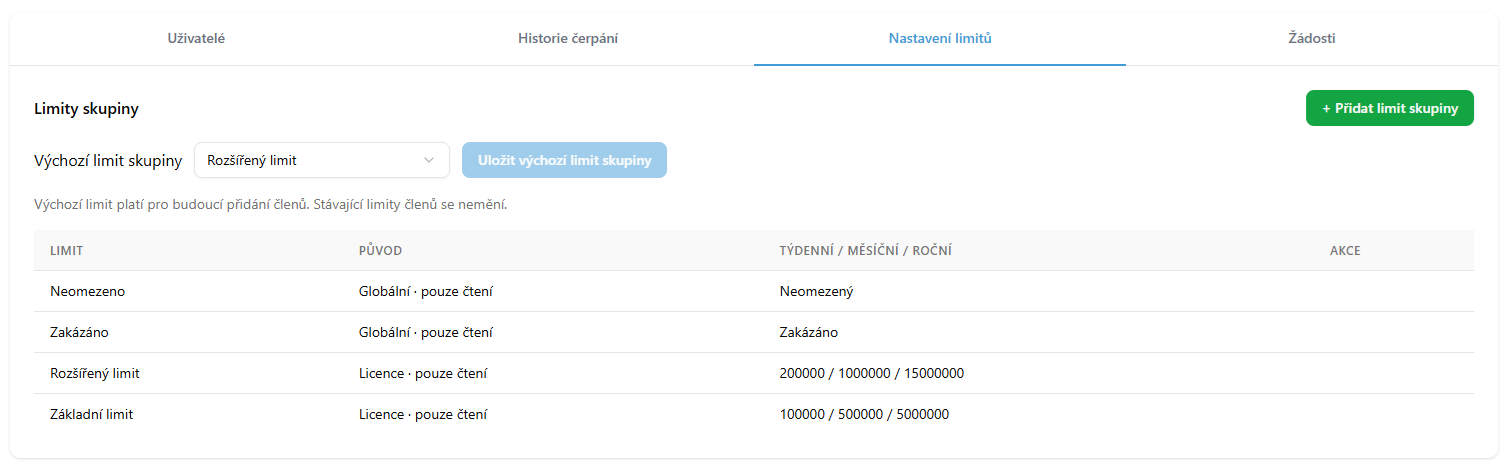
On the Limit settings tab, the group administrator takes over license limits and global limits, which are read-only here. The Add group limit button creates a custom limit that applies only in their group. This is also where they change the Group default limit.
Credit requests
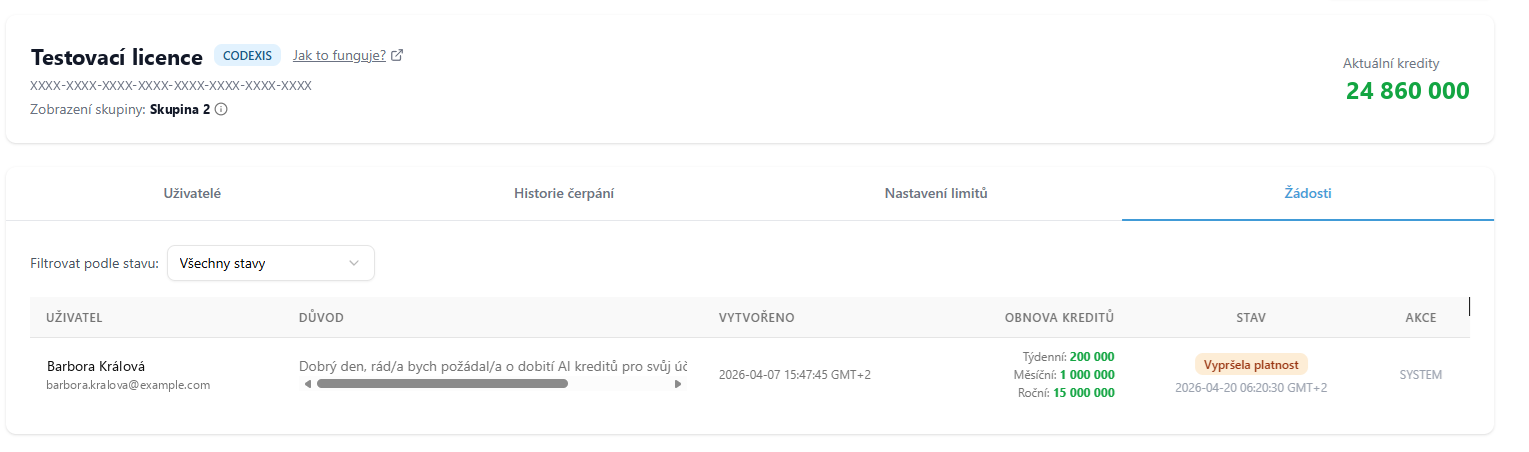
When a group member runs out of their limit, their credit request goes to the group administrator on the Requests tab. The administrator handles it the same way as the license administrator. Requests can be filtered by status.
Usage history
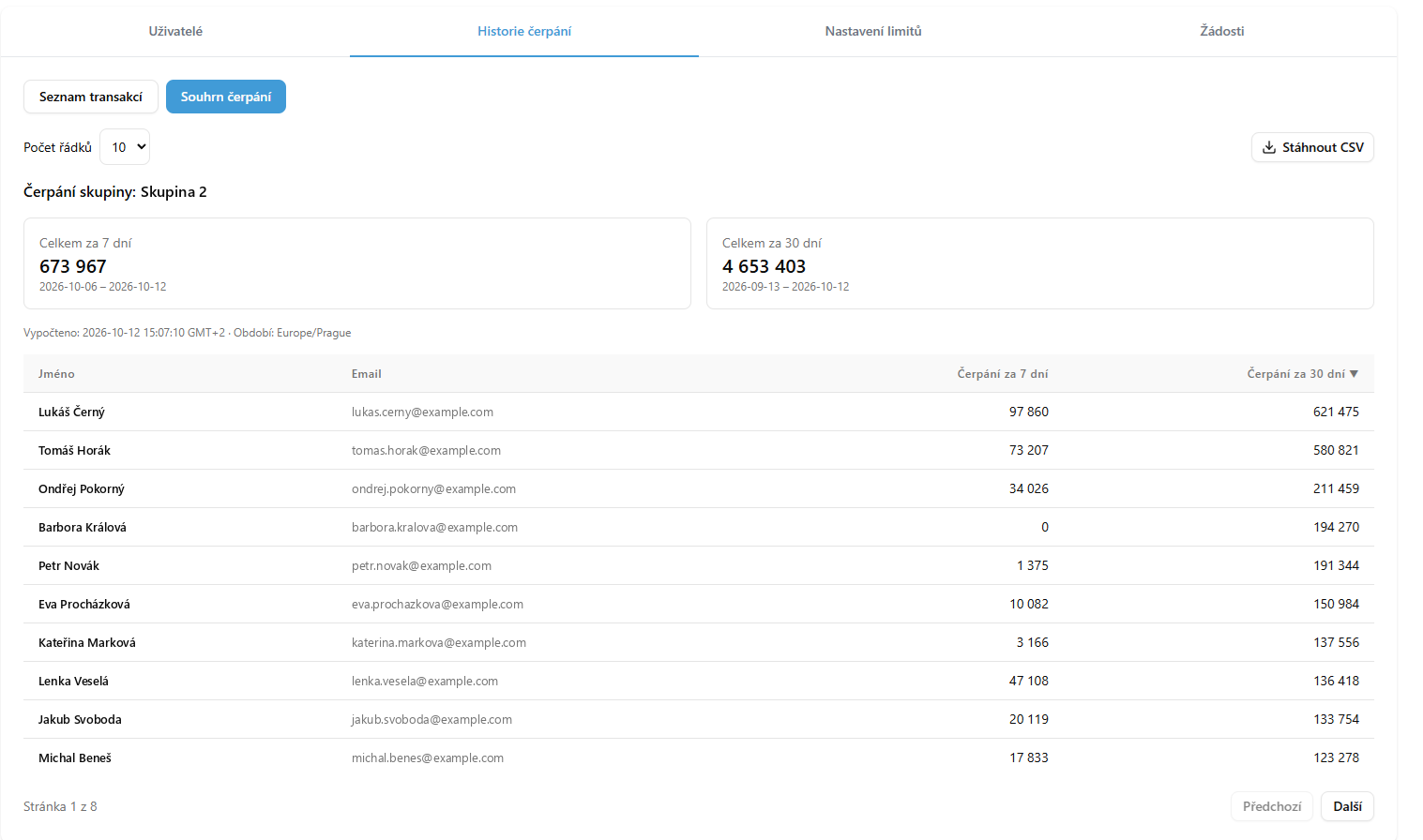
The Usage history tab shows consumption for group members only. In Usage summary mode you see the total for the last 7 and 30 days and the consumption of each member. Transaction list shows individual operations. Download the data with Download CSV.
Next steps
How limits, requests and usage history work at the license level is described on the Credit Management page. If a department wants to pay for credits from its own budget, use a Shared credit account.