

Desktop app
Install the CODEXIS AI Agent desktop app and connect folders from your computer to the chat.
The desktop app brings CODEXIS AI Agent straight to your computer. Once installed, you connect folders from your disk to the chat, for example from drive C:\. AI Chat can read the files in them, AI Agent can also edit them. You download the app by clicking Download the app below the chat window. On this page you will download the app, install it and connect your first folders. All you need is the account you use to sign in to CODEXIS AI Agent.
Download and installation
-
In CODEXIS AI Agent, click Download the app below the input field. It downloads the build for the system your browser runs on. Pick a different build with the ⋯ button next to it: macOS (Apple Silicon), Windows (64-bit), Linux (AppImage) or Linux (.deb).
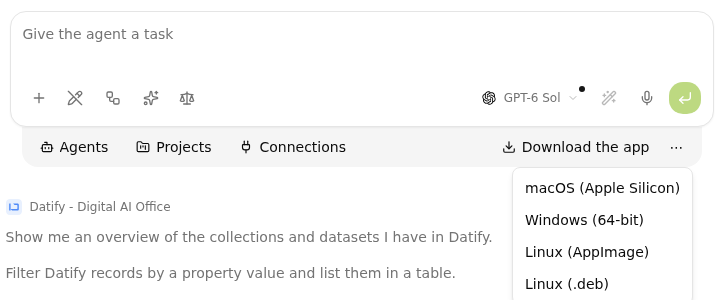
The Download the app button with the menu of builds for macOS, Windows and Linux -
Run the downloaded installer and go through the installation like any regular application.
-
After installation, open the app and sign in with the same account as on the web: enter your e-mail and continue with Pokračovat (Continue).
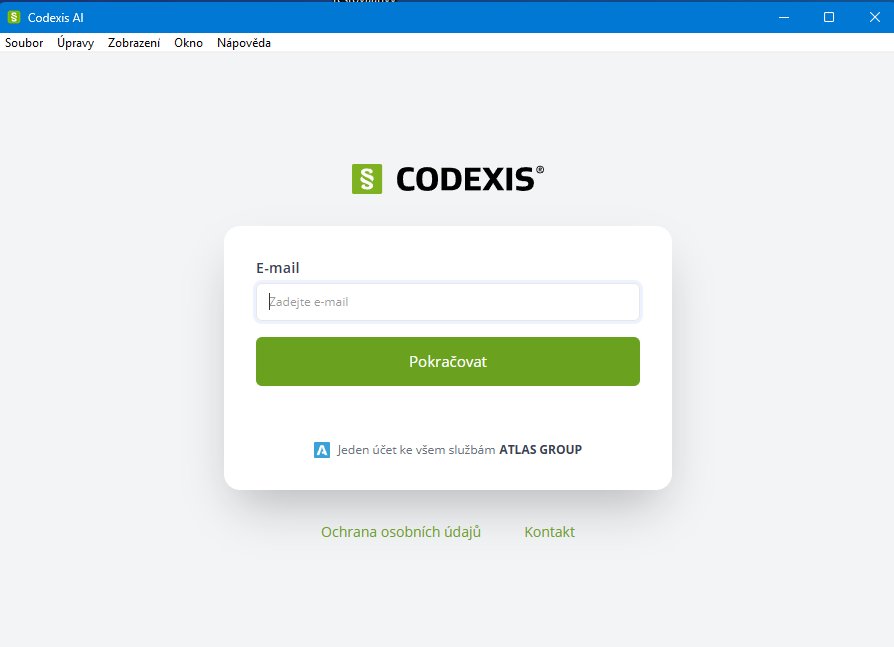
Signing in to the desktop app
You don't need to watch for updates, the app notifies you itself when a new version is available.
Connecting folders to the chat
-
In the desktop app, click Select folders on the right of the toolbar below the input field.
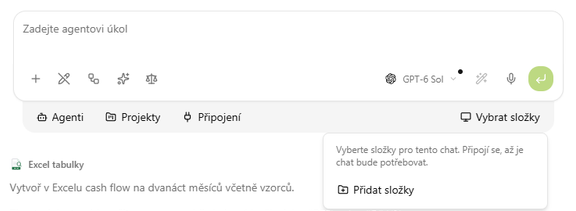
The button for selecting folders from your computer below the chat input field -
Choose the folder you want to make available to the AI. You can connect several folders and add more with Add folders.
-
The button then shows the name of the connected folder, or their number (e.g. 2 folders). Click it to see the list of folders the AI has access to, and disconnect any of them with the cross icon.
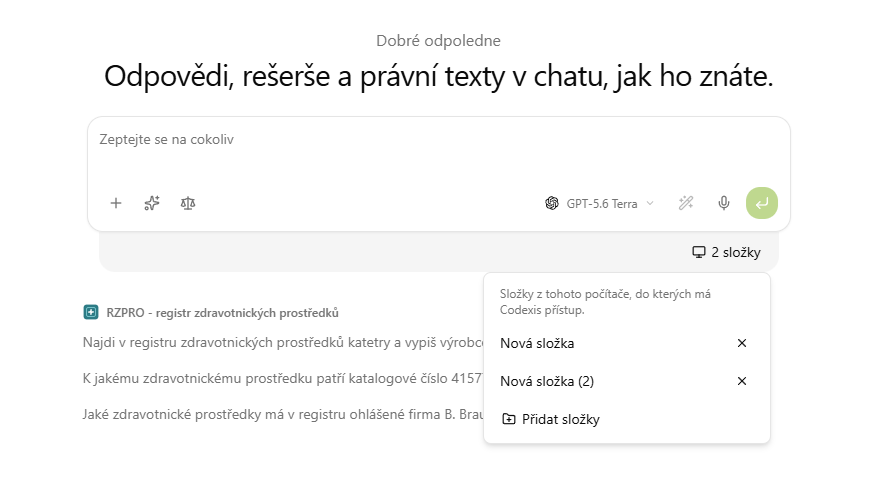
The list of connected folders with the add folders button
The connection carries over to new chats. Every new conversation sees the same folders until you disconnect them yourself.
Folder out of reach
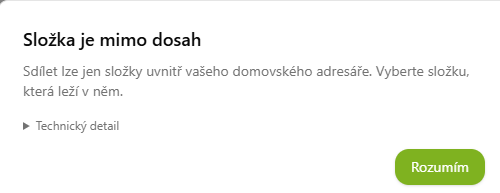
You can only connect folders inside your home directory (on Windows C:\Users\<your name>) that you have permission to write to. If you pick another folder, such as the system folder C:\Windows, the app does not connect it and shows the message Složka je mimo dosah (Folder out of reach). Choose a folder that lies in your home directory instead.
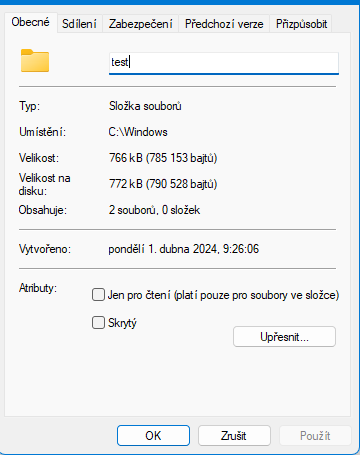
If a folder cannot be connected, check its settings. On Windows, right-click it and choose Properties. On the General tab, the Location row shows where the folder lies, and on the Security tab you can check that your account has the Write permission. If you do not have write access, ask the computer's administrator for it or move the folder into your home directory.
How connected folders work
Connecting a folder gives the AI a path to that folder on a particular computer. The connection itself does not upload the folder contents to the project or create a permanently available copy. The AI accesses files through the desktop app when it needs to work with them.
A project saves the selection of these paths. A new project chat receives a copy of the selection, not a copy of the files. A folder can therefore remain in the list of connected folders even when its contents are currently unavailable.
For the AI to read a folder or edit its files, the computer containing it must be awake, connected to the internet and running the desktop app with your account signed in. The folder must still be accessible and connected on that computer.
When a folder is unavailable
Access can stop when you shut down or put the computer to sleep, lose your internet connection or quit the desktop app. An individual folder can also become unavailable after it is moved or deleted, an external drive is unplugged or access to a network drive is lost.
If your request needs that folder, the AI tells you that it cannot currently access it. The saved path identifies the folder you want to work with, but does not itself provide access to its contents. An unavailable status does not necessarily reveal the exact cause, such as whether the computer is off or its connection has dropped.
Turn on or wake the computer, check its internet connection and start the desktop app. Check that you are signed in and can open the folder on that computer. If you moved or disconnected it, connect it again in the app. Then ask the AI to try accessing it again.
Closing the window and quitting the app are different actions. With Nechat běžet po zavření okna (Keep running after closing the window) enabled, the app can continue running in the background. The computer must still remain awake and reachable.
Working with connected folders
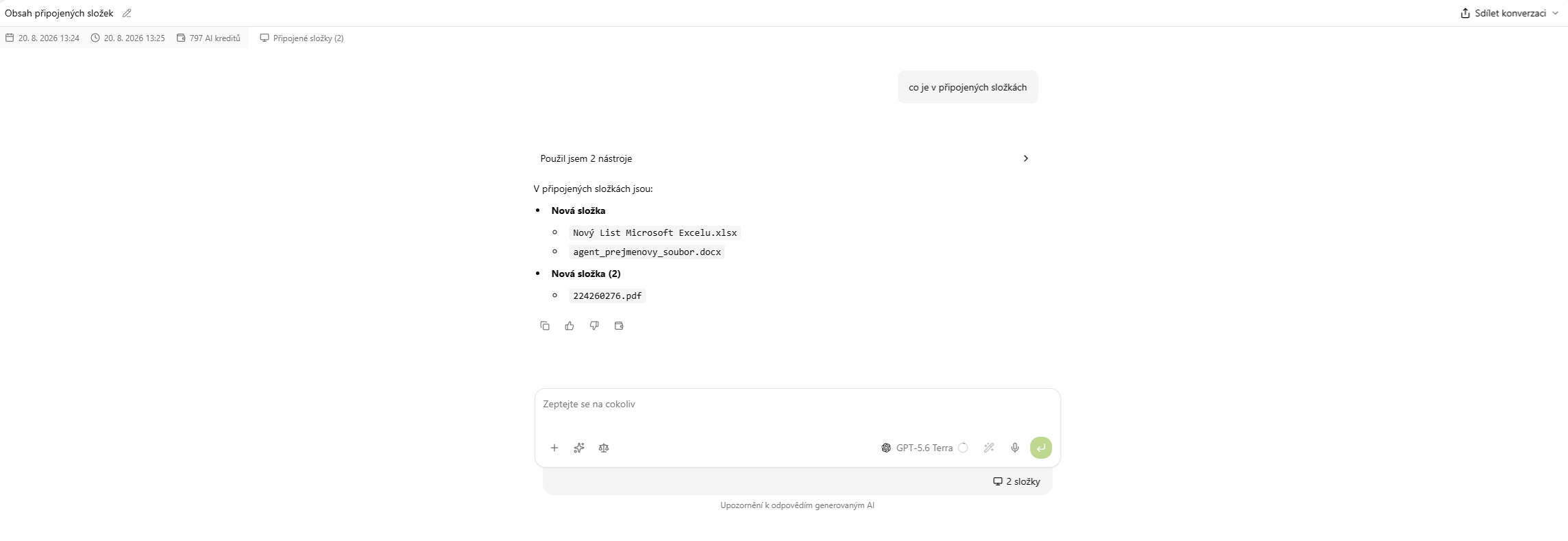
You work with connected folders through ordinary chat prompts. Ask for example "what is in the connected folders" and the AI lists their contents. The AI can edit, rename and create files in your folders only in Agent mode. In Chat mode it reads the files in connected folders but does not change them. It does not change them in Agent mode with Read-only mode switched on either. Both modes are described in the Conversation chapter.
App settings
In Nastavení (Settings), the Aplikace (App) tab manages how the app behaves on this computer:
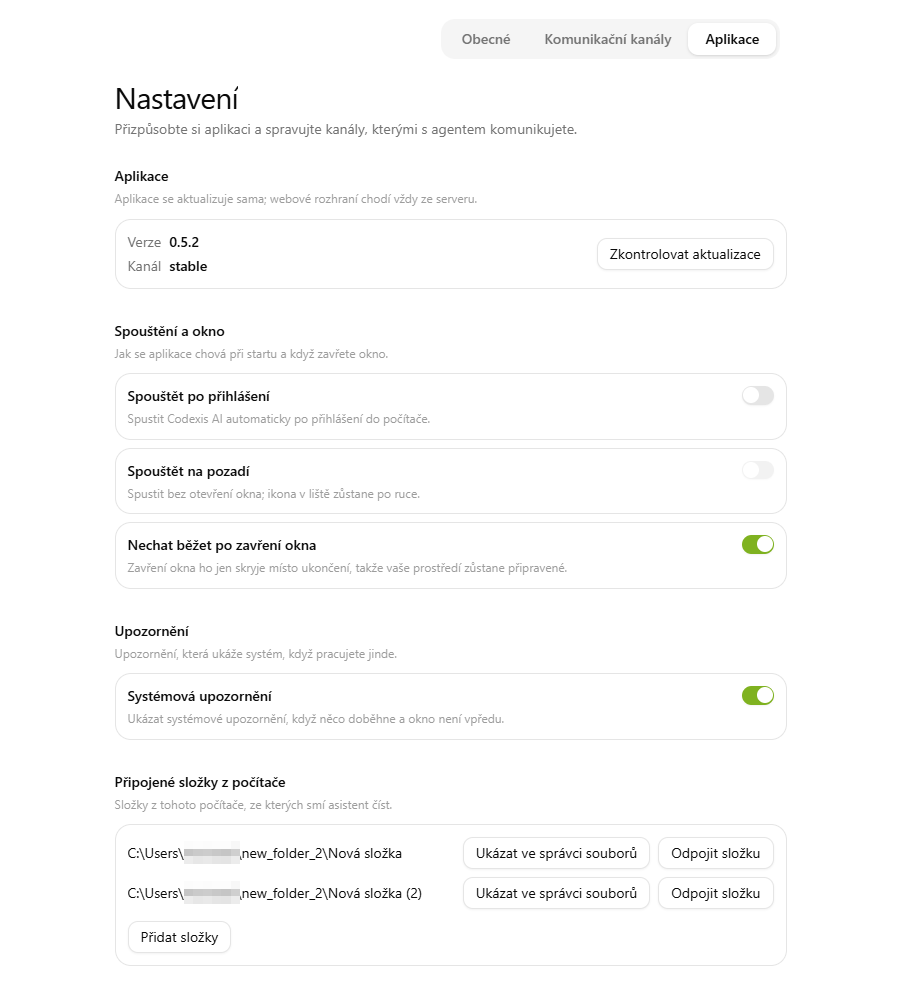
- Aplikace (App): version and update channel. The app updates itself; the Zkontrolovat aktualizace (Check for updates) button checks manually.
- Spouštění a okno (Startup and window): toggles to launch the app when you sign in to the computer, start it in the background and keep it running after the window is closed, so your environment stays ready.
- Upozornění (Notifications): system notifications let you know when something finishes and the app window is not in front.
- Připojené složky z počítače (Connected folders from this computer): the same folder list you see in the chat. Ukázat ve správci souborů (Show in file manager) opens the folder on disk, Odpojit složku (Disconnect folder) removes it and Přidat složky (Add folders) connects more.
Other ways to connect your data
Connecting folders from your computer is one way to get your own documents into the AI. If your data lives in company storage, connect it as connected storage: OneDrive, SharePoint and a network drive (SAMBA) are available. You can also upload individual files directly to the chat as attachments.