

Microsoft Copilot
Connect CODEXIS AI through MCP in Copilot Studio with a separate API key for each user.
In Microsoft Copilot Studio, add CODEXIS AI as an agent's MCP tool. The agent can then use CODEXIS AI from Microsoft Copilot and Teams. This guide covers the MCP connection; configure the agent's instructions, model, skills and other behavior to suit your needs.
You need access to Copilot Studio with permission to create and publish an agent, and your own CODEXIS AI API key. Access to the published agent depends on your organization's permissions and licenses. The screenshots show the English interface; menu names may vary between Copilot Studio versions.
Create an agent
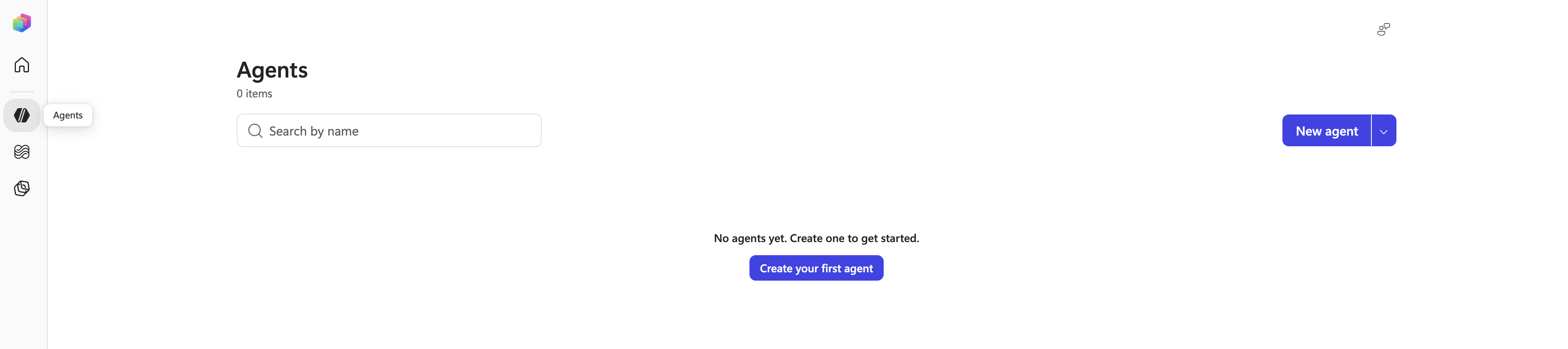
In Copilot Studio, open Agents and click New agent or Create your first agent.
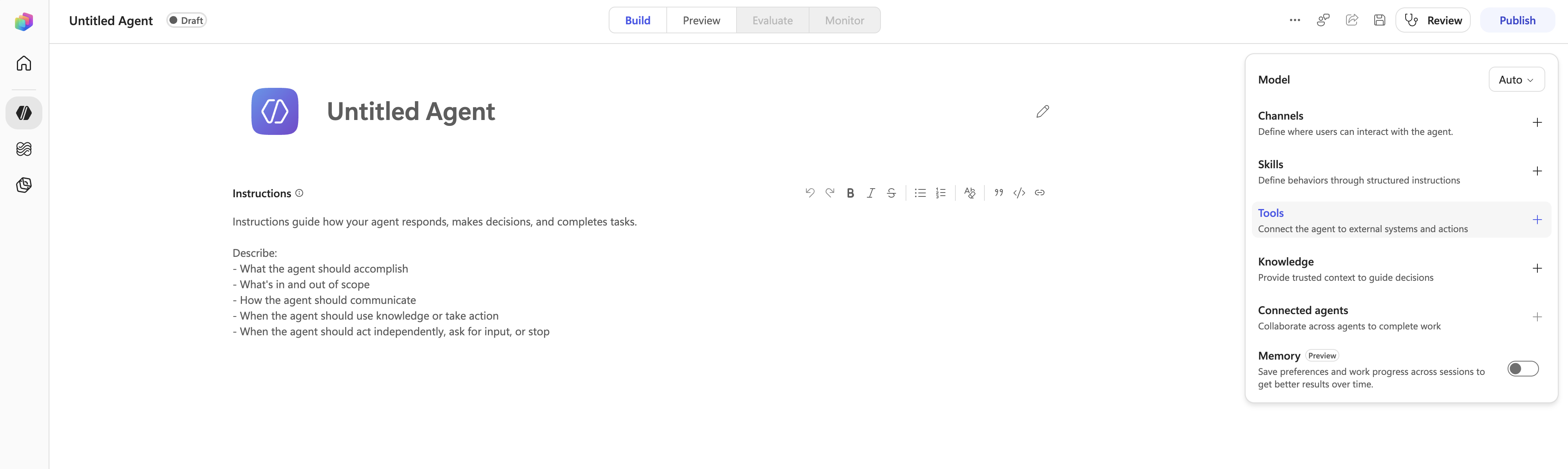
The agent editor opens on the Build tab. Find Tools in the right panel and click +.
Add the MCP server
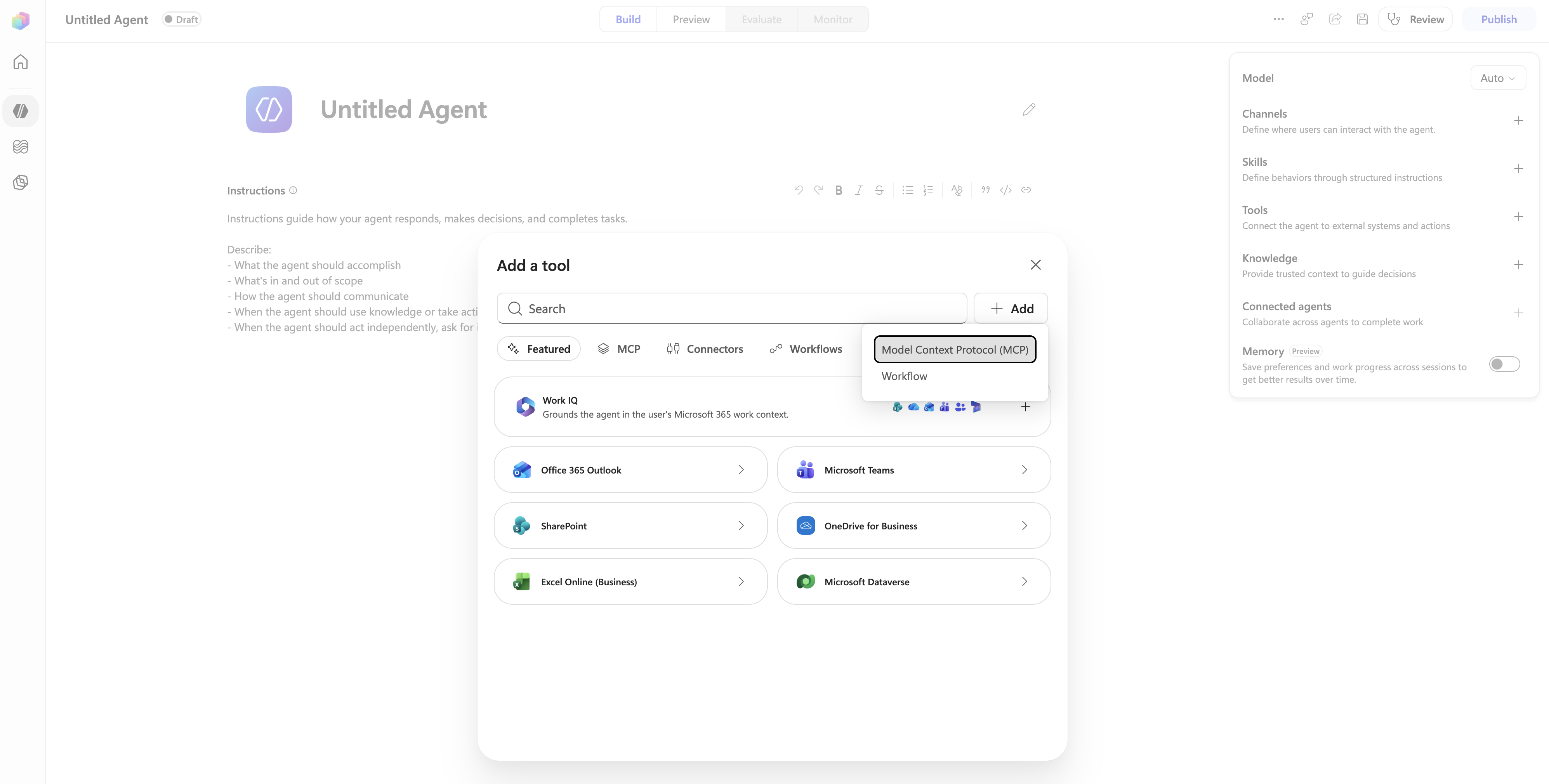
In the Add a tool dialog, open the Add menu and select Model Context Protocol (MCP).
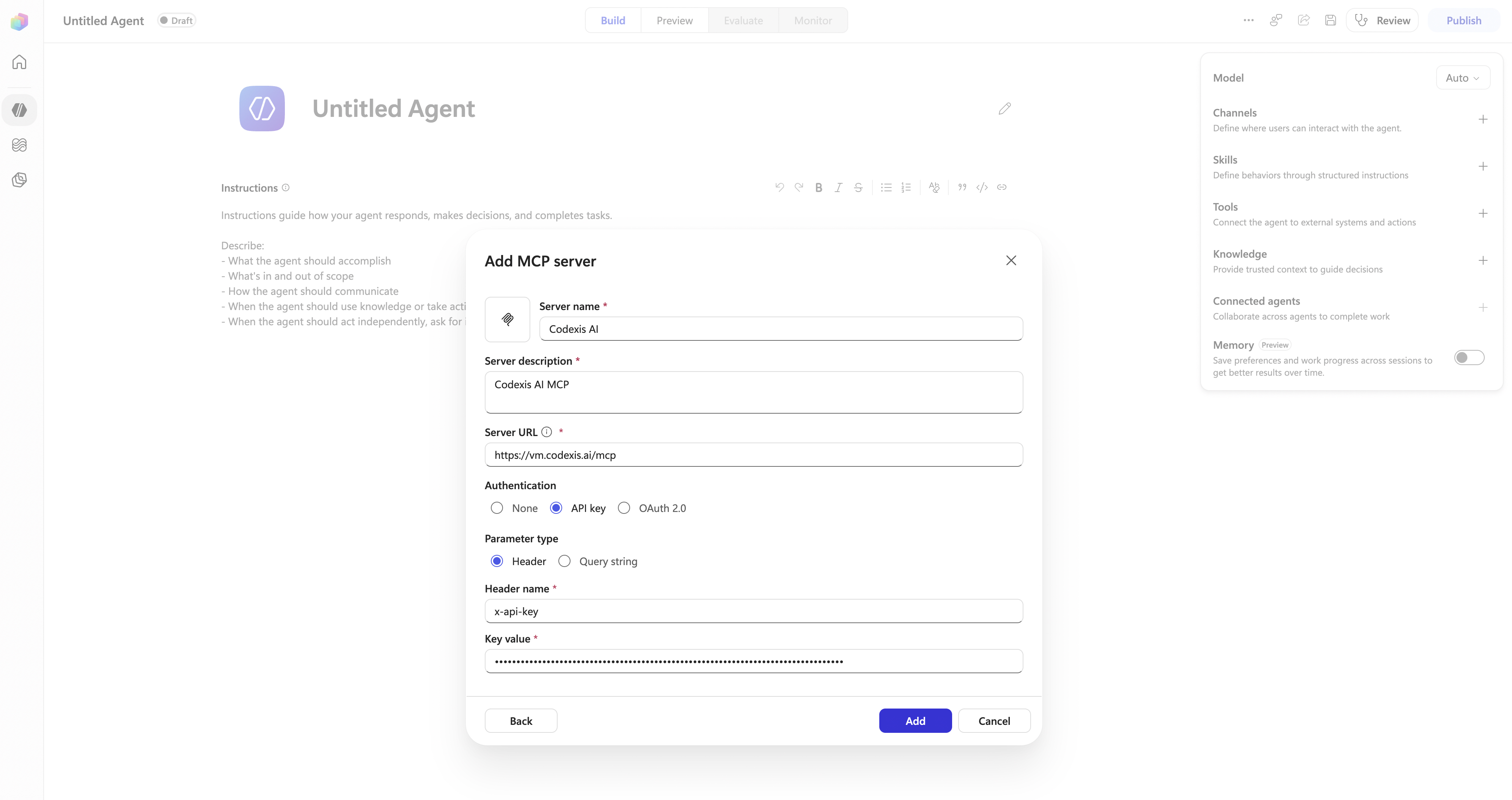
Fill in the Add MCP server dialog as follows:
| Field | Value |
|---|---|
| Server name | CODEXIS AI |
| Server description | CODEXIS AI MCP |
| Server URL | https://vm.codexis.ai/mcp |
| Authentication | API key |
| Parameter type | Header |
| Header name | x-api-key |
| Key value | Your CODEXIS AI API key |
Enter your key in Key value and click Add. Enter it in the tool connection, rather than in the agent's instructions or a chat message. The screenshot masks the value.
Require each user's own key
Open the added CODEXIS AI tool. At the top of Edit tool, open the Authentication menu and keep End user account selected. Its description states that each user signs in with their own account.
Shared account uses the same connection for everyone. Select End user account to require each user's own API key.
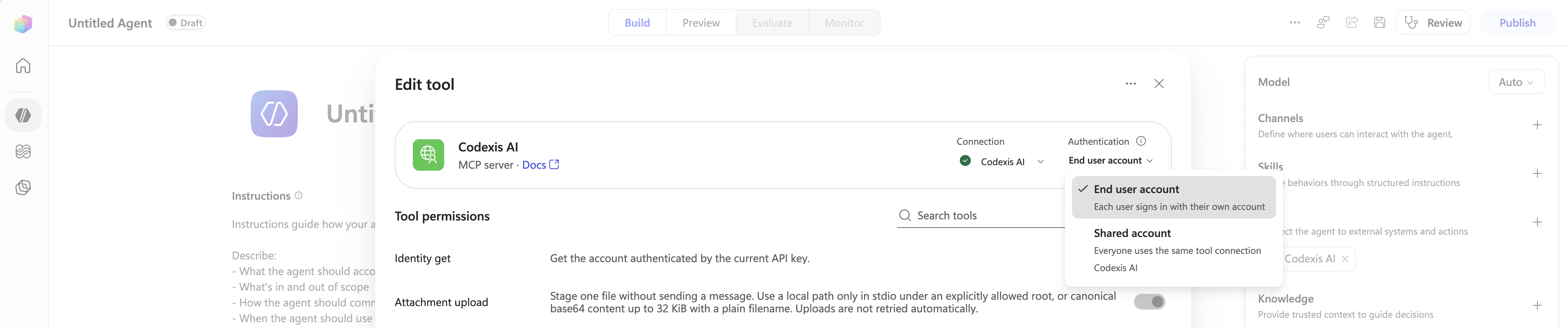
When a user without a connection first invokes the tool, Copilot offers to create their own connection. The user enters their CODEXIS AI API key there. Subsequent calls use their saved connection; the prompt does not necessarily appear when they first open the agent.
Each key determines the CODEXIS AI account, accessible data and credit usage. Verify the account by asking the agent to call identity_get through MCP. To check another user, use their session with their own connection.
Make the agent available in Copilot
After completing your own agent configuration, publish it using Publish. Click + next to Channels and add Microsoft 365 and Microsoft Teams.
Under Availability, select Microsoft Copilot and Microsoft Teams and click Add channel. Then use Use and share to configure availability according to your organization's permissions.
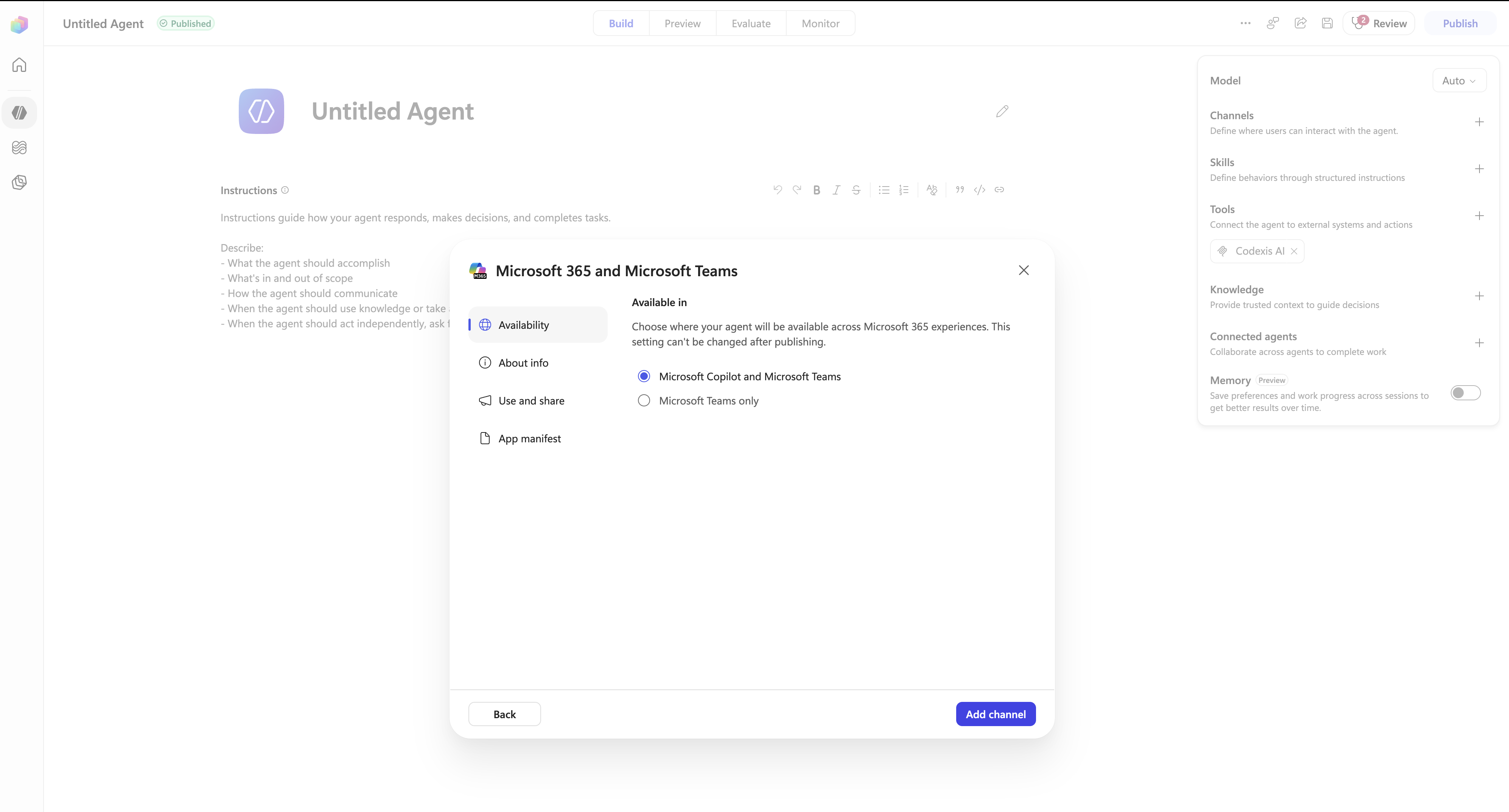
Publishing does not make the agent public to all organizations. This procedure applies to an agent in your organization's tenant. Copilot Studio multitenant mode currently supports neither MCP tools nor end-user connections; see the multitenant documentation.
Troubleshooting
For a 401 error, check your API key in the connection and the x-api-key header name. If another user accesses your account, check End user account and the connection they actually use. If the agent is missing from Copilot, check publication, channel availability and sharing within your organization.
See Microsoft's guides to connecting an MCP server and user authentication for tools.