

Claude
Connect Claude Desktop, web and Cowork to CODEXIS AI through MCP.
To connect, you need your API key and the MCP server URL https://vm.codexis.ai/mcp. The key determines the CODEXIS AI account and whose credits are used.
Claude web, Claude Desktop and Cowork
These applications share remote connectors linked to your Claude account. The MCP connection originates from Anthropic’s infrastructure, so the server must be reachable from the internet. Use a local server address with terminal agents.
API key authentication availability
This setup requires the Request headers section in the connector dialog. Anthropic offers it in beta to selected organizations. Check availability for your account using the header authentication documentation.
Open the wizard in Claude Desktop
Open Customize in the sidebar, select Connectors, then choose Add custom connector from the Add menu. The screenshots show the English Claude Desktop interface.
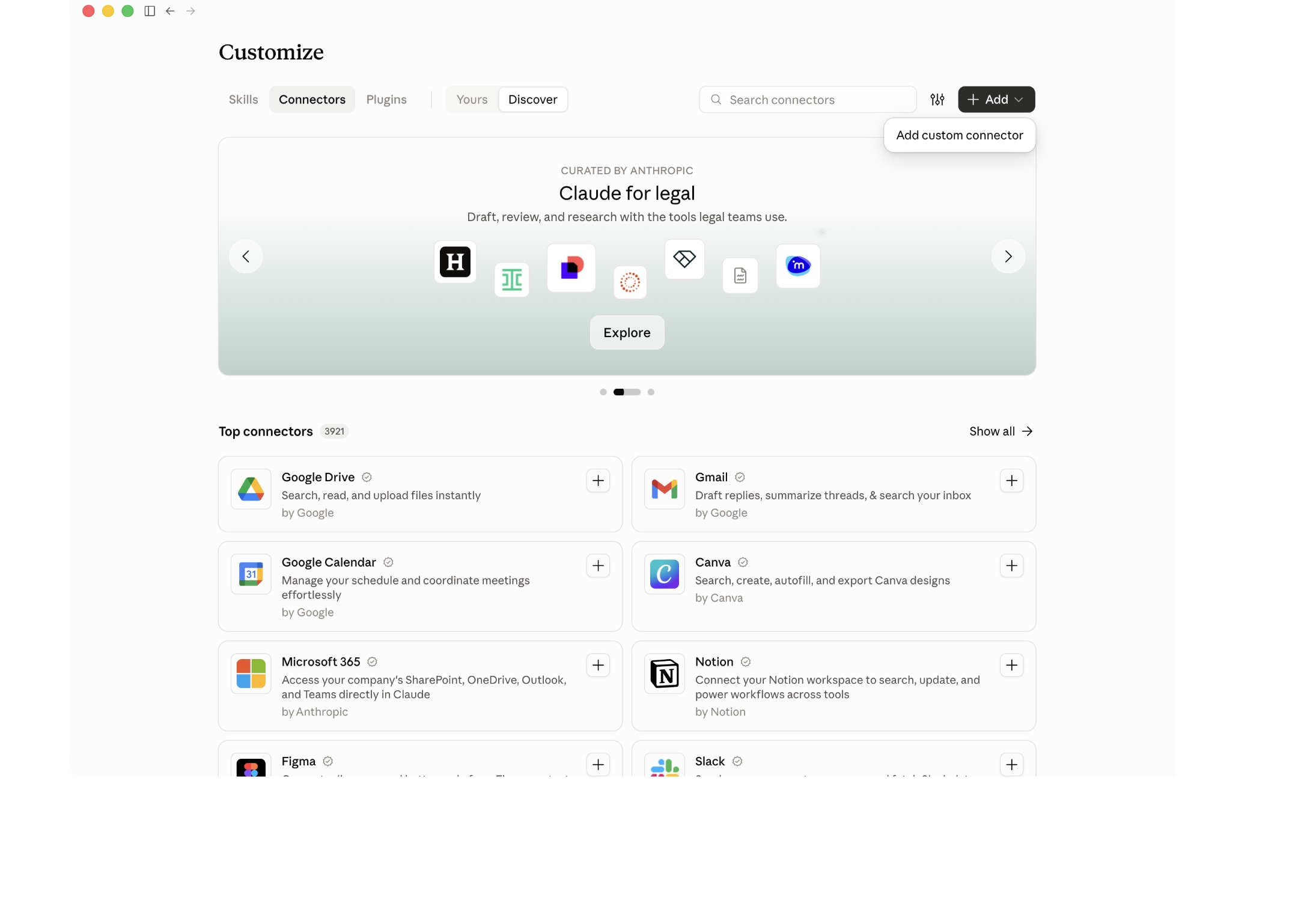
Enter the name and address
Enter CODEXIS AI Agent in Name. Paste this address into MCP server URL:
https://vm.codexis.ai/mcp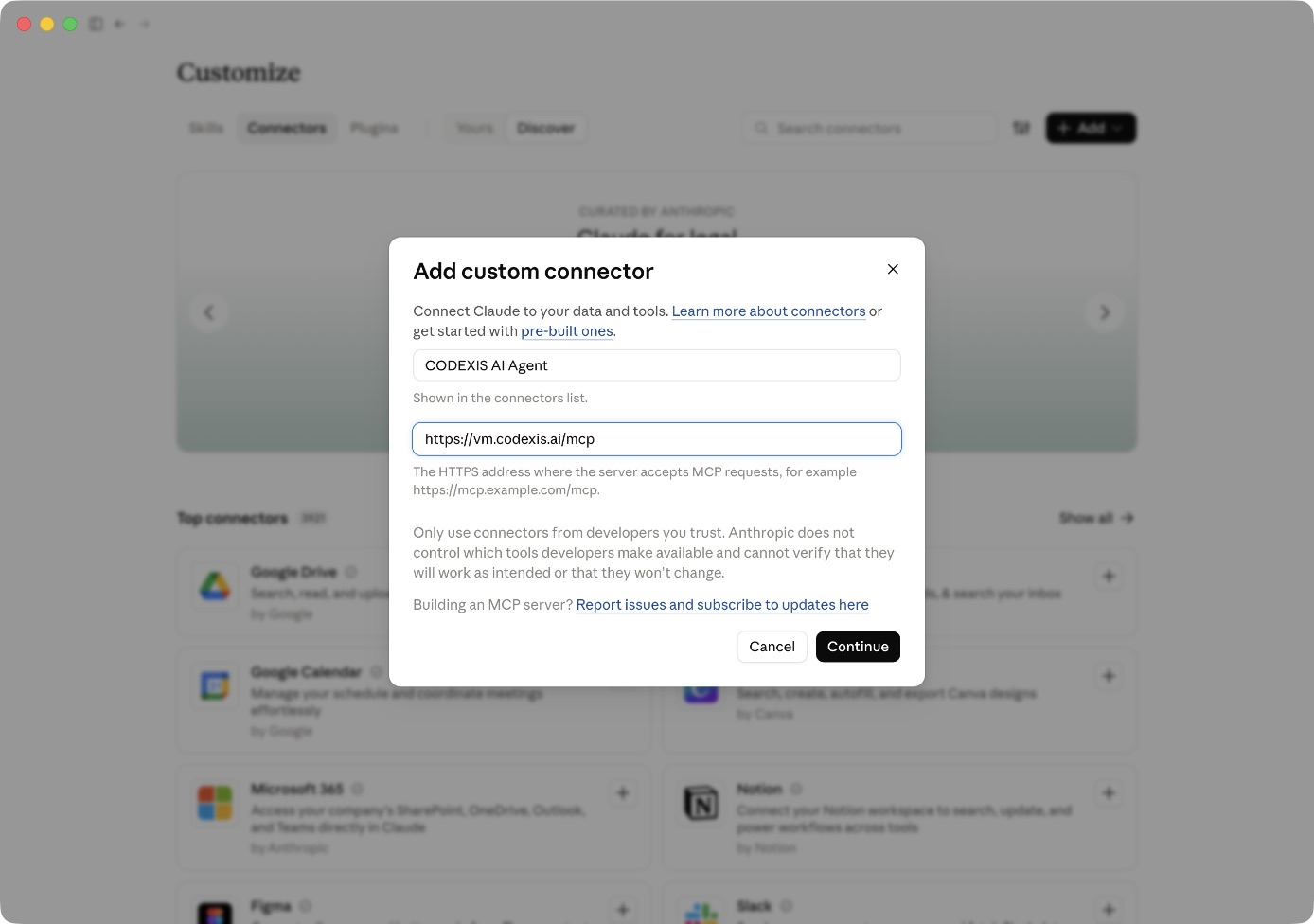
Click Continue. If Claude offers manual authentication setup, select Continue anyway and configure authentication in the next step.
Add your API key
- Under Authentication, select No sign-in. CODEXIS will authenticate requests using the API key in the header.
- Under Request headers, click Add header and select x-api-key in Header name.
- Paste your CODEXIS API key into Value and leave Required enabled.
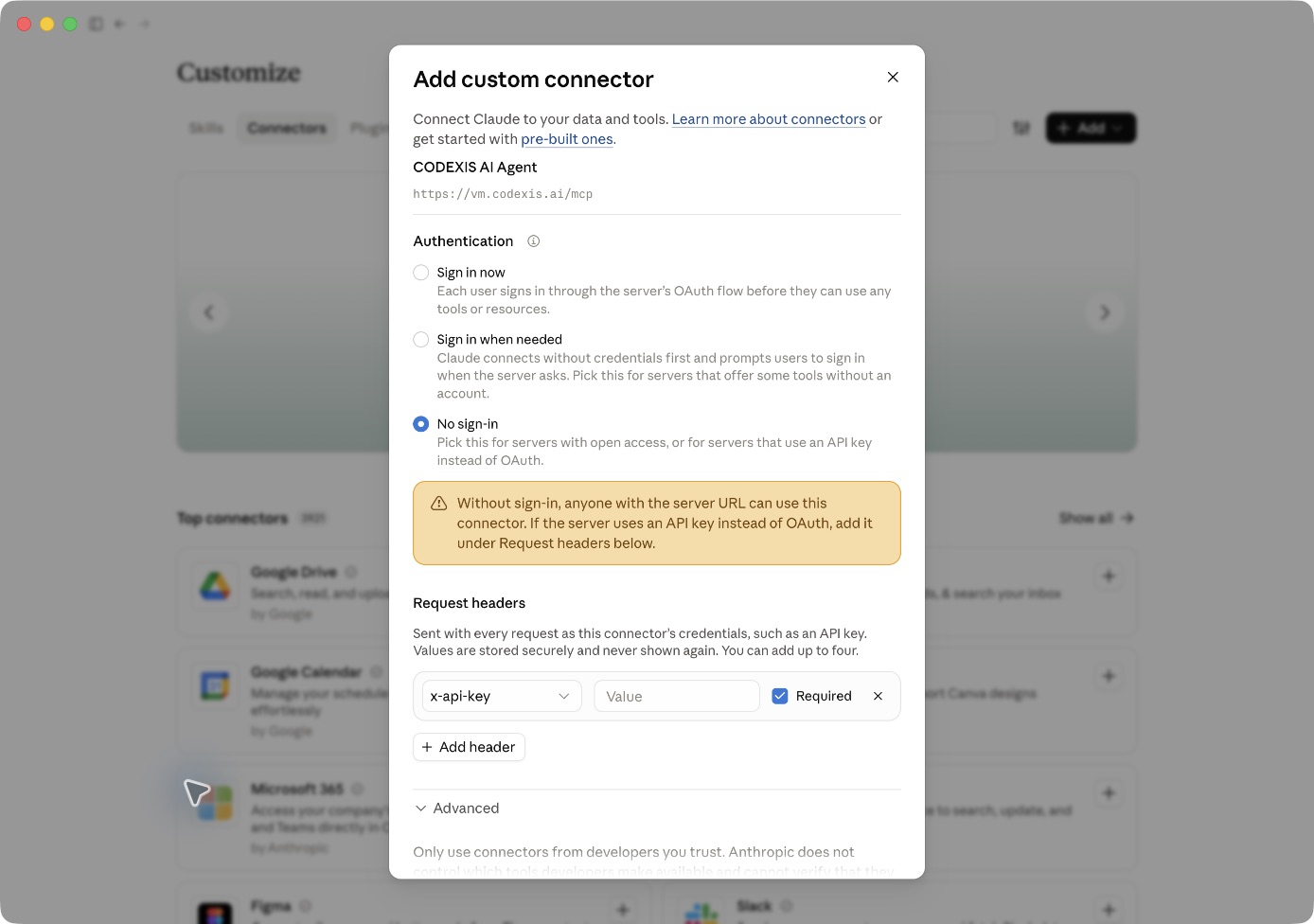
The Value field is empty in the screenshot. Enter your key only in the application, then save the connector using Add at the bottom of the dialog. See Claude’s custom connector guide for details.
On a personal account, manage the connector under Customize → Connectors. For an organization, its owner controls availability. A key stored in a shared connector gives everyone using it access to the same CODEXIS account and credits. Choose the sharing scope to match the account whose key you add.
Enable the saved connector for the conversation or Cowork task. See the Claude connector overview for availability across applications.
Check the connection and run a first task
First ask the client to check the connected account using identity_get and list projects using project_list. Then ask it to create a project, start a chat or send a message. The message_watch tool observes a specific answer; how progress updates appear depends on the client.
For HTTP 401, check the key and whether it is sent in X-Api-Key. For connection errors, check that the complete MCP URL is reachable from where the client makes its requests. If tools are missing, check that the connector is enabled for the session and allowed by your organization.
Next steps
Attachments, progress and controls through MCP · CLI · REST API v2