Connect SharePoint to CODEXIS AI
Connect a SharePoint site to CODEXIS AI Agent and work with documents across connected projects and teams.
For SharePoint you sign in and choose a specific site, its document library and, optionally, a folder inside it. You can connect several sites at once and then run a single conversation over all of them. The AI Agent treats them as one shared workspace, so it can connect documents across projects and teams.
Connecting
- On the Connections page, click Connect storage and choose SharePoint.
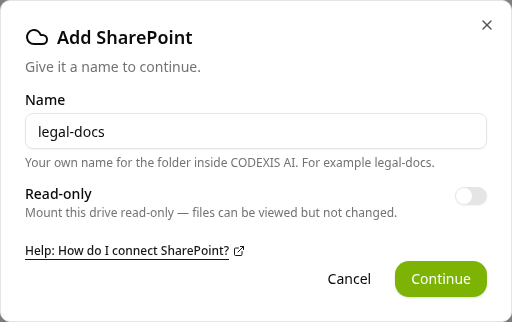
- In the Add SharePoint dialog, name the connection.
- Optionally enable Read-only and click Continue.
- Sign in with your Microsoft account, just like with OneDrive.
- Find the SharePoint site by its name and open it. If the site has more than one document library, open the library you need.
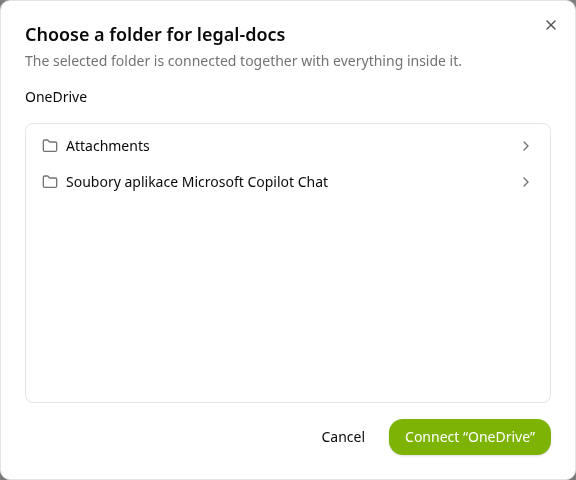
- Open folders to go deeper, then click Connect with the folder name. The folder is connected with everything inside it. To connect the whole library, click Connect without opening any folder.
Why a specific site and folder and not the whole SharePoint? In a larger organization, SharePoint can hold hundreds of thousands of documents across many sites and libraries. By choosing a site, a library and a folder you define exactly which space the AI Agent may work with. It sees nothing outside it. This gives you full control over the data the AI can access.
After you choose the site and library, choosing the folder looks the same as with OneDrive. The Connect button always names the folder you are in.