

Conversation
Start a new conversation in CODEXIS AI. Enter a request, attach documents and select agents or skills for your task.
What it is: The main workspace where you communicate with CODEXIS AI. This is where you enter queries, upload documents and run agents and skills. You can start a new conversation at any time using the New conversation button in the left menu.
Entering a query: Simply type into the "Ask Codexis AI" field and send. Below the field, however, there is a toolbar that lets you turn an ordinary query into focused work.
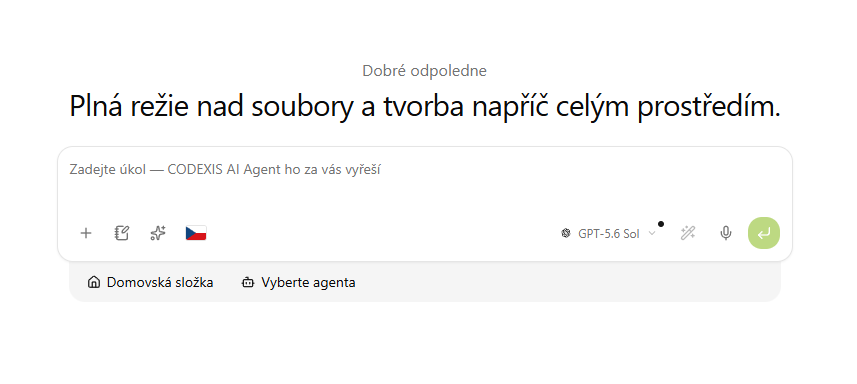
Toolbar (from the left)
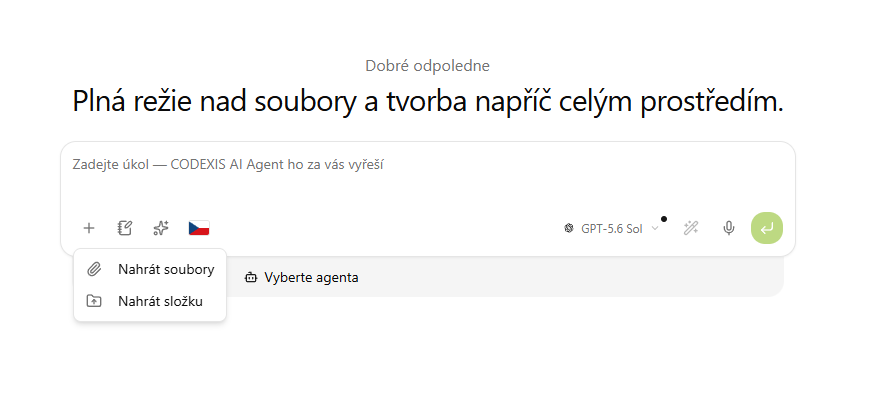
- + (Upload) — add materials to your query. You can choose Upload files or Upload folder. The AI then works directly with your documents.
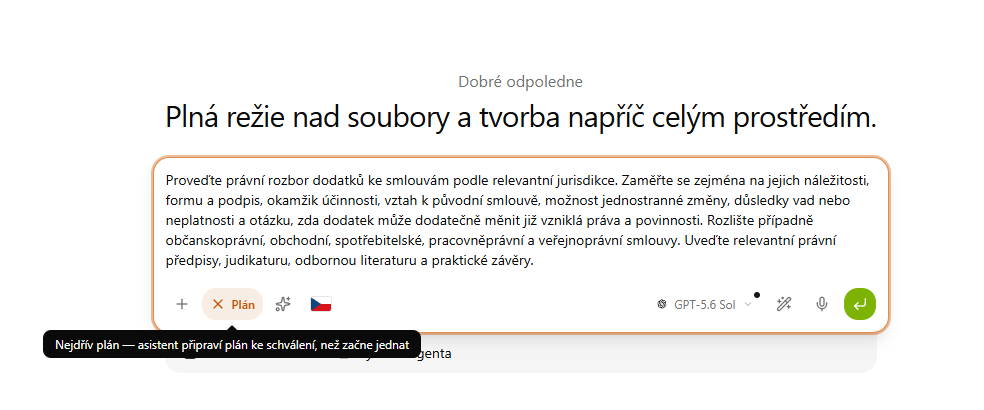
- Plan (plan mode) — turns on planning mode. Before the AI starts acting, it first prepares a plan for your approval — you confirm it and only then does it get to work. Useful for more complex, multi-step tasks.
-
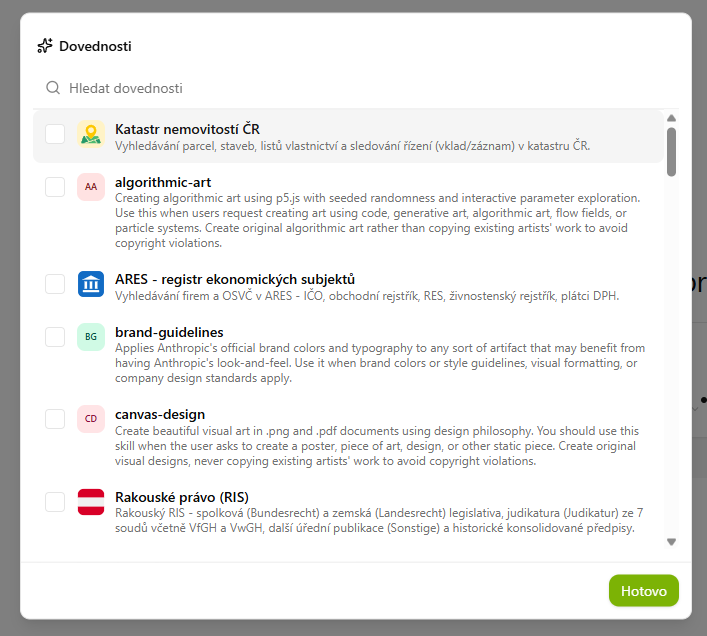
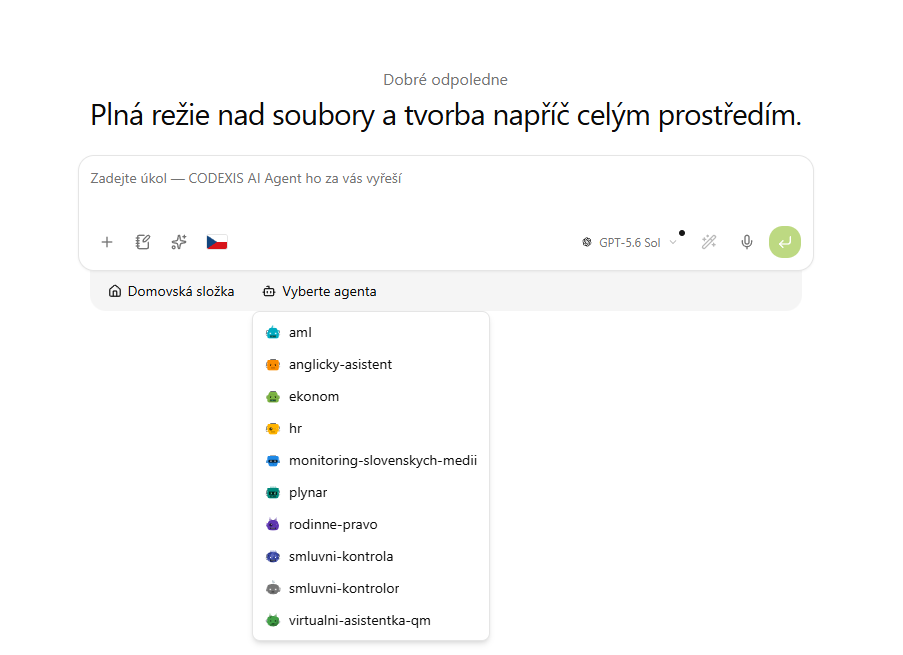
Skills / Agents — opens a selector with two tabs:
- Skills — check the specific skills to be used in this conversation (e.g. ARES, CODEXIS — Czech Taxes, Video and audio analysis).
- Agents — instead of the general AI, let a specific agent answer (e.g.
smluvni-kontrola,ekonom,hr).
Confirm your selection with the Done button. Items can be found quickly via the search field.
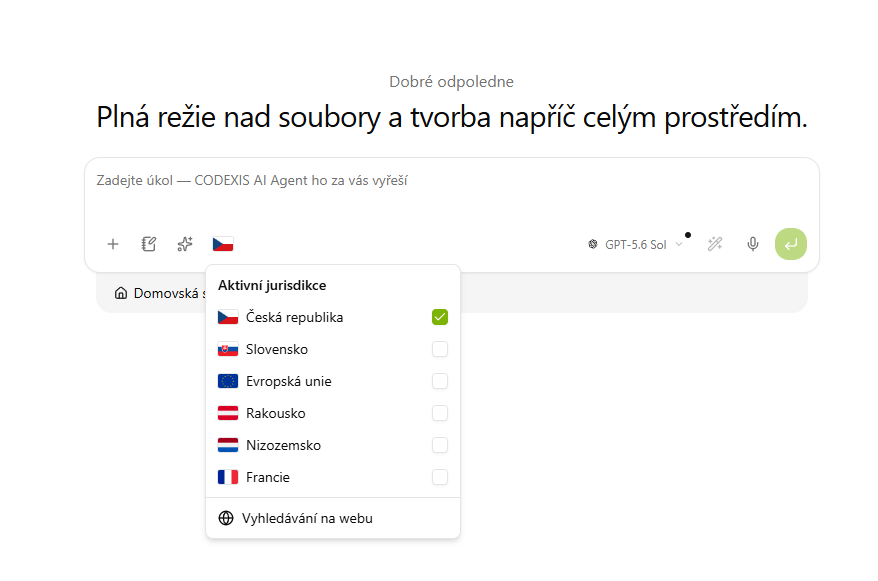
- Jurisdiction (scales icon) — set the Active jurisdictions the AI should draw on: Czech Republic, Slovakia, European Union, Austria, Netherlands, France. In the same menu you can also enable Web search.
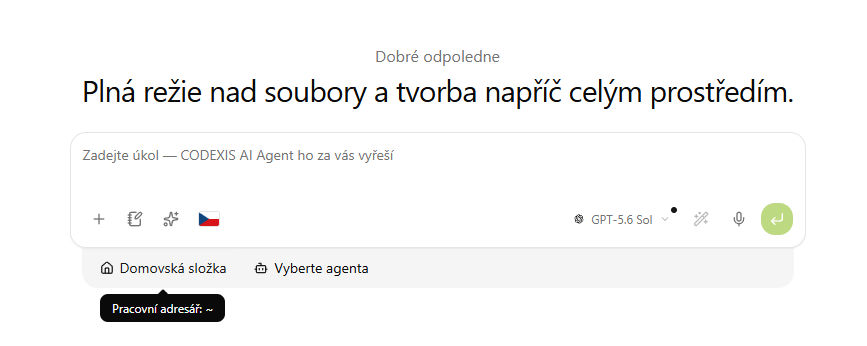
- Working directory (house icon) — shows and sets the folder the conversation works in (the default is the home directory
~). Important when you want the AI to work with specific files.
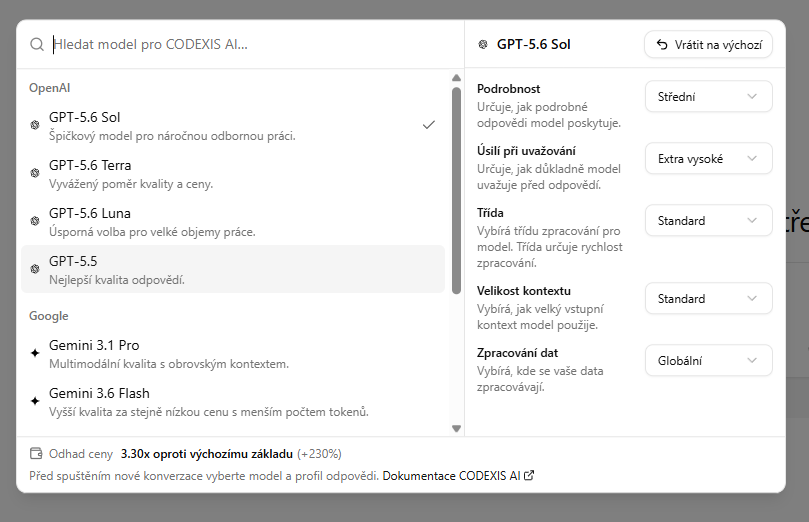
On the right
- Model and response settings — choose the AI model (e.g. GPT-5.6 Sol) and fine-tune the response profile: level of detail, reasoning effort, processing class, context size and data processing. Each option shows an approximate price estimate.
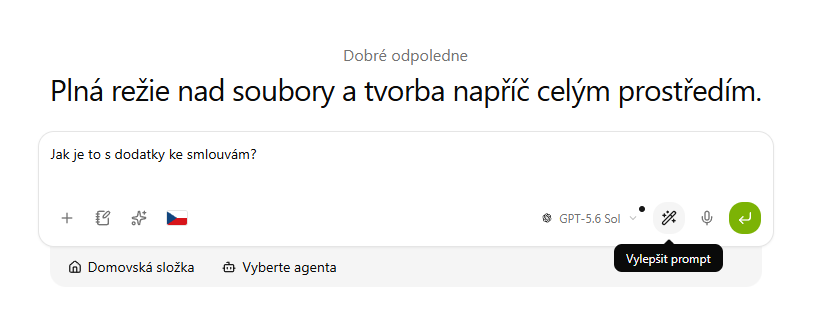
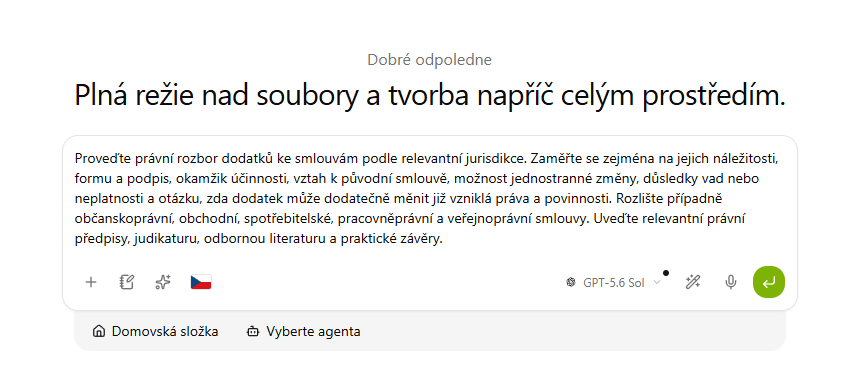
- Improve prompt (magic wand icon) — with a single click, let the AI rephrase and expand your query into a well-crafted brief. A short question becomes a precise, professional prompt.
- Dictation (microphone) — enter a query by voice.
- Send — sends the query (or use the Enter key).
Source preview in chat
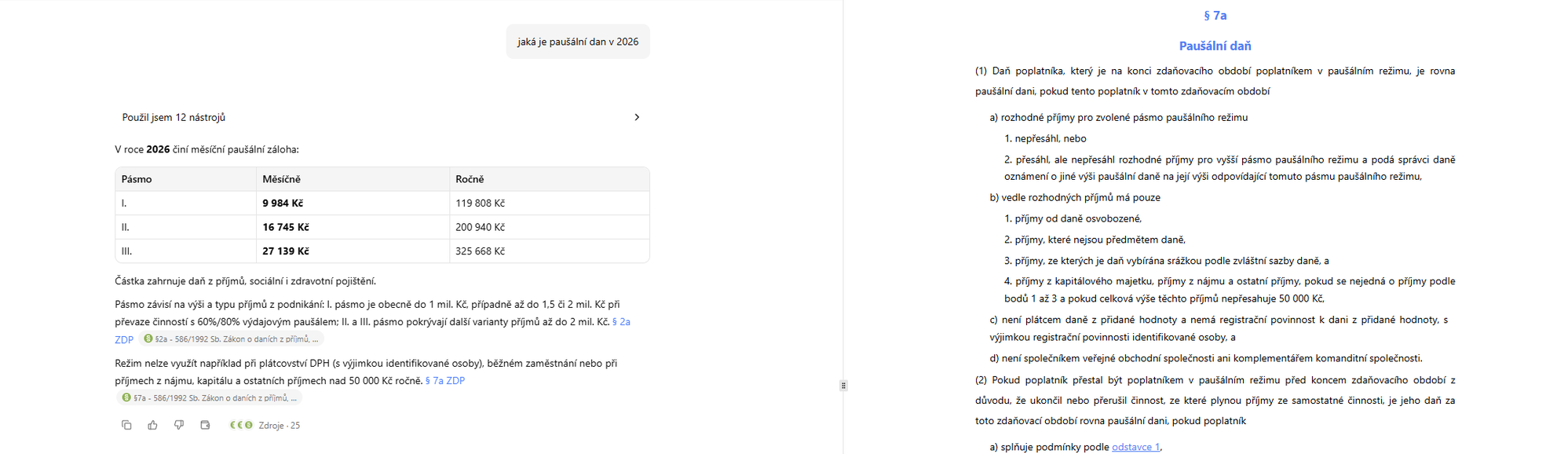
When an answer cites a legal source, clicking it opens a right-hand panel with a preview of the regulation itself — right at the place the answer refers to. You can verify the wording of a section without leaving the conversation.
💡 In practice: Before asking a more complex query, it pays to set the correct jurisdiction, choose an agent or skill and upload the necessary documents — the AI then immediately knows the context it should work in, and the result is much more accurate.