

Connecting storage and drives
Connect OneDrive, SharePoint or a network drive to CODEXIS AI Agent. The Connections page keeps them together and lets you browse their files.
Connected storage links CODEXIS AI Agent to the places where your company documents live. The agent works with them directly, without downloading files and attaching them by hand, and saves results back to the storage. You can connect OneDrive and SharePoint, or create a network drive (SAMBA) directly in CODEXIS AI Agent.
Everything sits in one place: in the left menu, under Tools, click Connections. The item is visible in Agent mode.
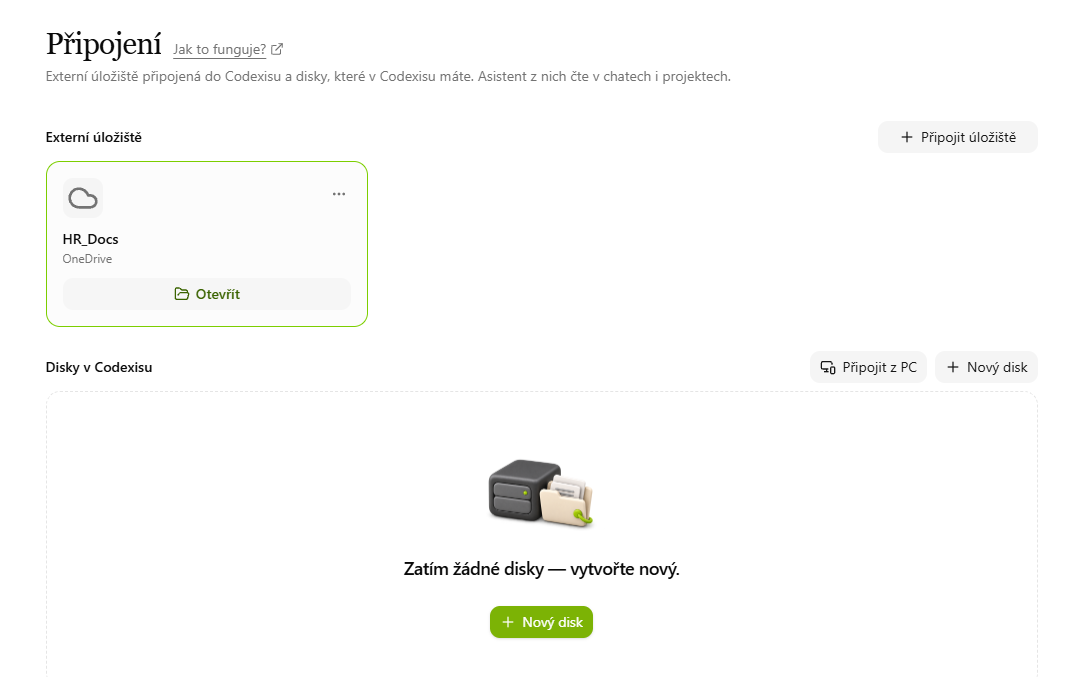
What the page contains
- External storage: folders from OneDrive and SharePoint. Add a new one with Connect storage. Storage connected in read-only mode has the Read-only label. You can Disconnect it from the card menu; your files in OneDrive or SharePoint are not deleted.
- Drives in Codexis: network drives you create with New drive. Connect from PC shows the details for connecting a drive to your computer. From the card menu you share a drive with colleagues (Manage sharing), rename it or delete it.
- Shared with me: drives that someone else has shared with you.
If the service you use is not on offer, click Want to connect another shared folder? in the connection dialog and tell us which one you need.
Setting up each type of storage
- Network drive (SAMBA): a drive inside CODEXIS AI Agent. Share it with colleagues with Read or Read and write rights and mount it on your own computer as a network drive.
- OneDrive: connect your own OneDrive. The agent sees, reads and edits your files, and changes are written back.
- SharePoint: connect specific SharePoint sites (
/sites/…), several at once if you need.
Which storage to choose
A network drive works as shared team space, for example for case materials that colleagues add to (Read and write) and a supervisor only reviews (Read). OneDrive and SharePoint suit you when the documents already sit in company storage and you want the agent to work with them where they are.
Browsing files
Click Open on a storage or drive card to open the file browser.
- At the top you see the Current folder and move around it as in an ordinary file manager. You can upload, create, rename and delete files and folders here.
- In the top right you switch the view: Tabular View, List View, Grid View and Dual-Pane View.
- In Settings you turn on Show hidden files and choose how files are sorted.
You will find the same browser in a project on the Files tab and in a conversation under the Files button in its header.
Extracting data into a table
One of the views can pull information from the documents in a folder into a table. This helps when you have dozens of similar documents, such as contracts or statements, and need their data for further processing.
- Switch to Tabular View in the top right.
- Click Add Column and specify what information should be taken from the documents. A column has a name, a type (for example Text, Date or Currency) and an optional description that tells the agent what to look for.
- Add further columns the same way, one per piece of information.
- Click Start Extraction. The agent goes through the files in the folder and fills in the columns. Until you start the extraction, the table has the Draft status.
- Download the finished table with Export to Excel.
You can edit or remove columns at any time and run the extraction again. Tabular View is available on a computer; it is not shown on mobile.
Next steps
To work with storage within a single matter, see Projects. To repeat a task over the same folder regularly, set up an automation.
4. History and conversation search
Find an earlier CODEXIS AI conversation by its content as well as its name, and pick up unfinished work from the history in the left panel.
Network drive (SAMBA)
On the Connections page you create a network drive (SAMBA), share it with colleagues and mount it on your computer.