

Network drive (SAMBA)
On the Connections page you create a network drive (SAMBA), share it with colleagues and mount it on your computer.
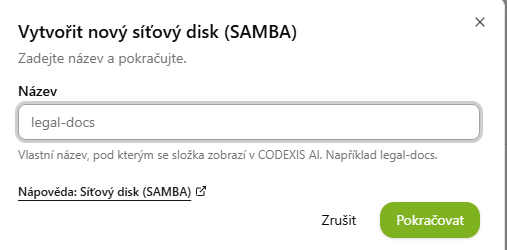
On the Connections page, click New drive in the Drives in Codexis section. In the Create a new network drive (SAMBA) dialog, name the drive (for example legal-docs) and confirm with Continue. The drive is created directly in CODEXIS AI Agent.
Sharing with colleagues
You can then share the drive with colleagues on the same licence, each with their own level of access:
- On the drive card, open the … menu and choose Manage sharing.
- Enter your colleague's e-mail address.
- Choose the permission: Read (they can only view files) or Read-write (they can also edit and add files).
- Confirm with Add.
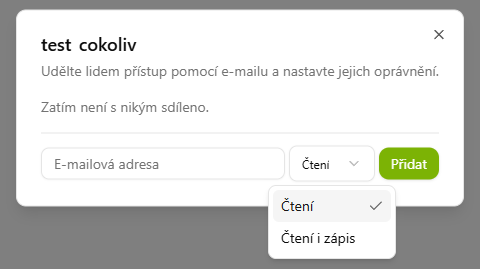
The whole team then works over a single drive, each member with the rights you assigned them.
Mounting as a network drive on your computer
You can mount your network drive (SAMBA) directly on your computer as a network drive. It then behaves like a regular disk: you drag files into it and create them right on your computer. It works both ways. Whatever you create on the drive on your computer appears instantly in CODEXIS AI Agent, and whatever the agent creates is immediately on your computer.
1. Find your login credentials
On the Connections page, click Connect from PC in the Drives in Codexis section. The button is available on a computer. The Connect your drives from your own computer dialog opens with the details you'll need:
- Address:
\\smb.codexis.ai\drives - Username: for example
u12345 - Password: reveal it with the eye icon
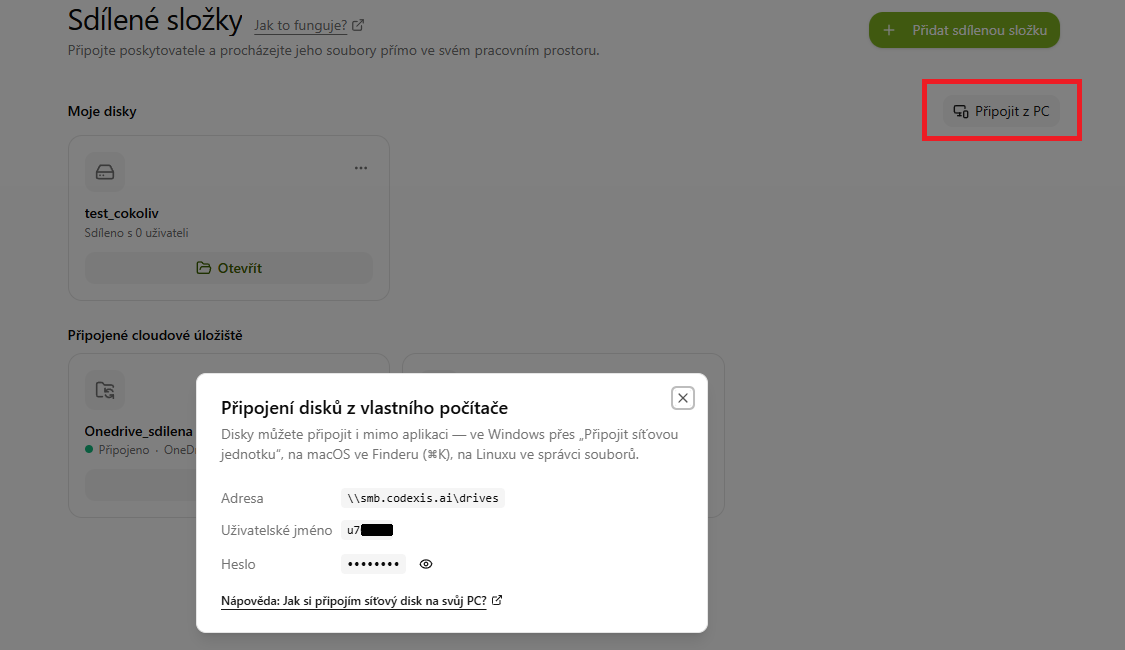
2. In Windows, choose "Map network drive"
Open File Explorer, right-click This PC and choose Map network drive…
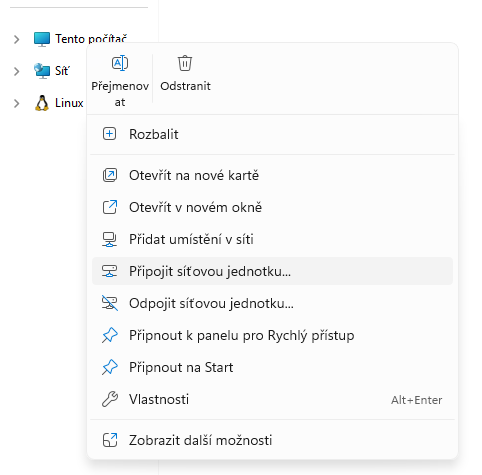
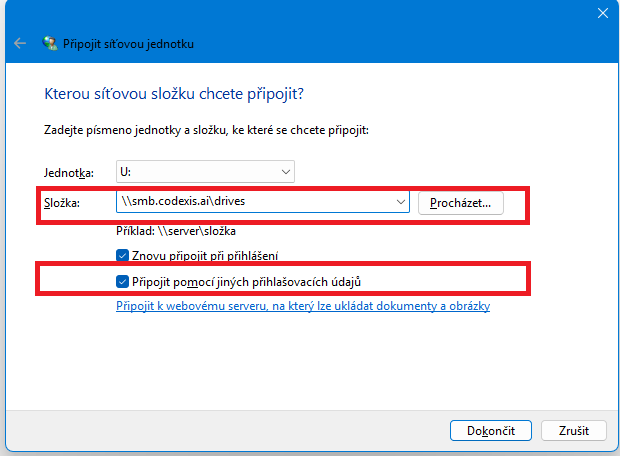
3. Fill in the address and options
In the dialog:
- Pick the drive letter the disk will appear under (e.g.
U:). - In the Folder field, enter the address
\\smb.codexis.ai\drives. - Keep Reconnect at sign-in checked, so the drive connects automatically every time you start your computer.
- Check Connect using different credentials. You'll sign in with the credentials from the app, not your company account.
- Confirm with Finish.
4. Sign in with the credentials from the app
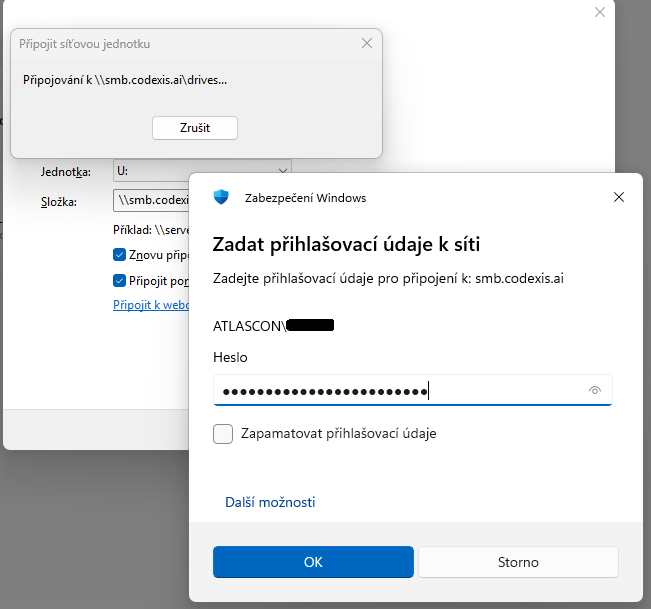
Windows asks for network credentials. Enter the username and password from the Connect from PC dialog (step 1). If Windows pre-fills your company account, click More choices → Use a different account. Check Remember my credentials to sign in automatically next time. Confirm with OK.
5. The drive is on your computer
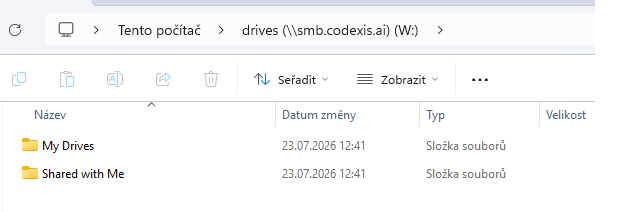
A new drive appears in File Explorer with two folders:
- My Drives: your own network drives (SAMBA),
- Shared with Me: drives your colleagues shared with you.
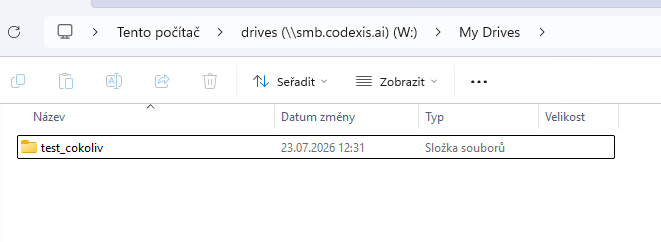
In My Drives you'll find each of your drives, here for example the test_cokoliv drive:
You will find the same drive in CODEXIS AI Agent on the Connections page in the Drives in Codexis section. Everything you save to it on your computer is instantly available to the agent.
macOS and Linux
You can mount the drive outside Windows too. On macOS use Finder via Go → Connect to Server (⌘K) with the address smb://smb.codexis.ai/drives, on Linux use your file manager. The credentials are the same.
Working with the drive in a conversation
You can then ask the agent about the files on the drive right in a conversation. Drag your case files onto the drive and write "Summarize the documents on the test_cokoliv drive" or "Prepare an overview of deadlines and risks from those contracts." The agent sees the files instantly and saves its results back to the drive.