Automation
Automation lets you schedule CODEXIS AI to perform a given task regularly on its own, for example, to check the documents in a folder every morning and alert you to any problems.
What it is: Automation lets you schedule CODEXIS AI to perform a given task regularly on its own — for example, to check the documents in a folder every morning and alert you to any problems. You set it up once and it keeps running by itself according to the schedule.
Where to find it: In the left-hand menu Tools → Automation. The overview shows your My automations list (status, schedule and quick controls) and, at the top, a field where you describe a new automation in plain language.
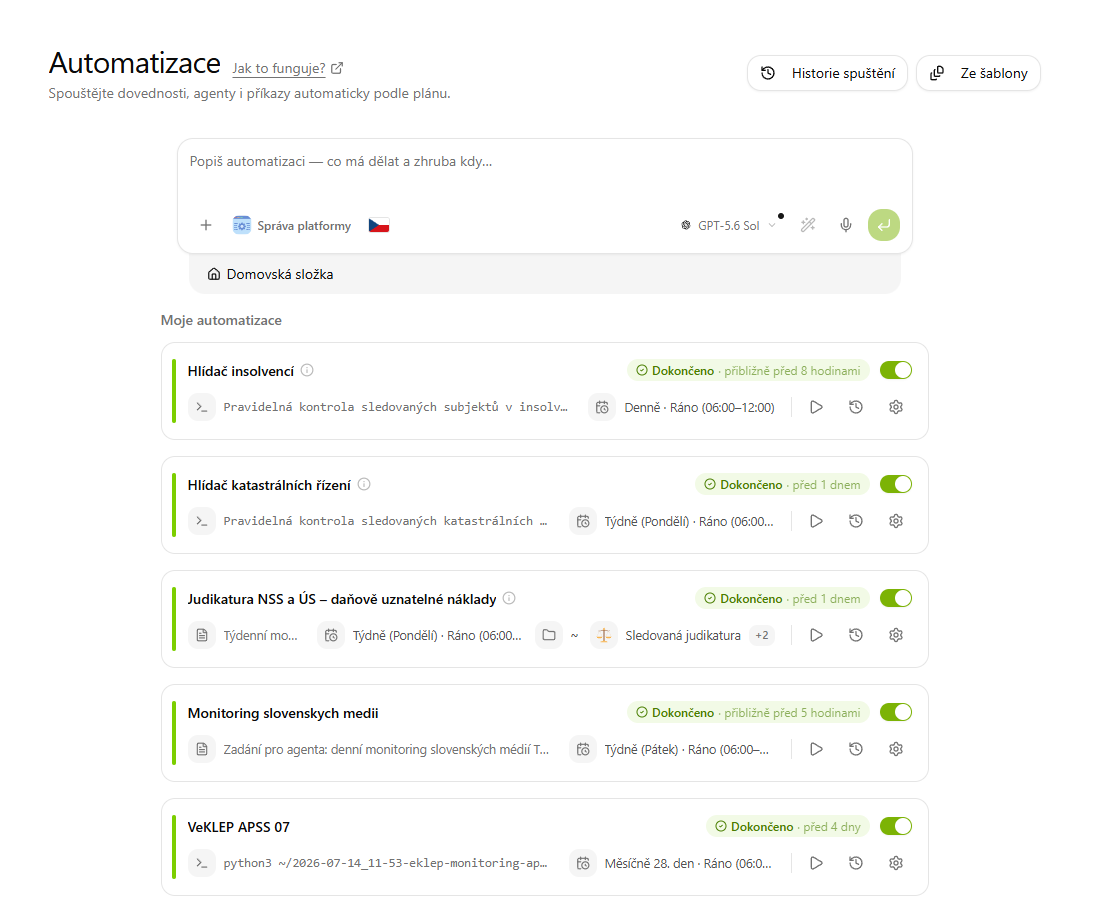
You create a new automation conversationally — you describe what you want and CODEXIS AI fills in the rest with follow-up questions.
Step 1 — Describe the automation
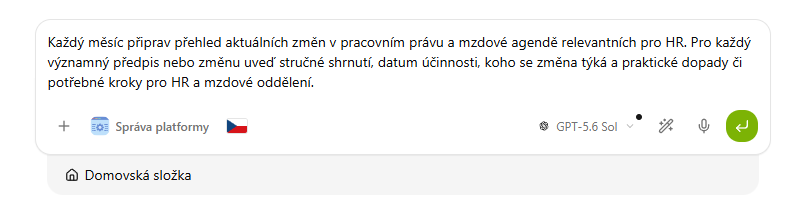
In the "Describe the automation — what it should do and roughly when…" field, write the work assignment and the approximate frequency in plain language. For example: "Every month, prepare an overview of the latest changes in labour law and payroll relevant to HR."
Step 2 — Answer the follow-up questions
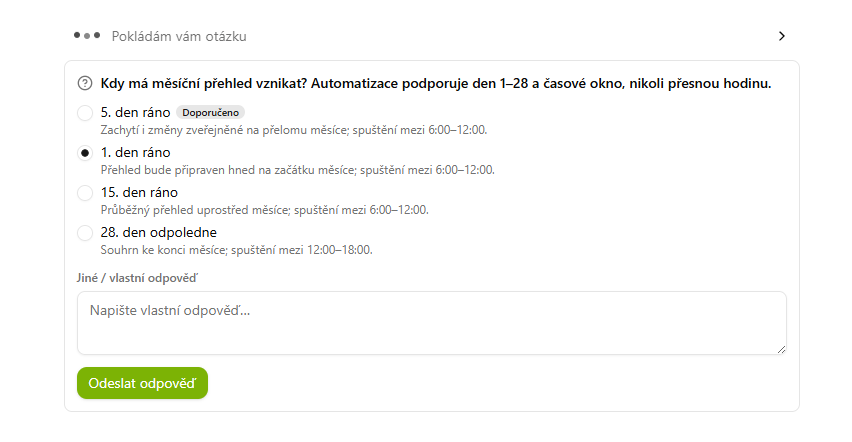
Based on your assignment, CODEXIS AI asks clarifying questions with ready-made options (the recommended one is marked). Typically it asks about the run time — automation supports a day of the month (1–28) and a time window (Morning, Afternoon, Evening, Night), not an exact hour. Pick one of the options, or write your own answer, and confirm with Send answer.
Once you've answered the questions, the automation is ready and appears in your My automations list.
What you can do with a finished automation
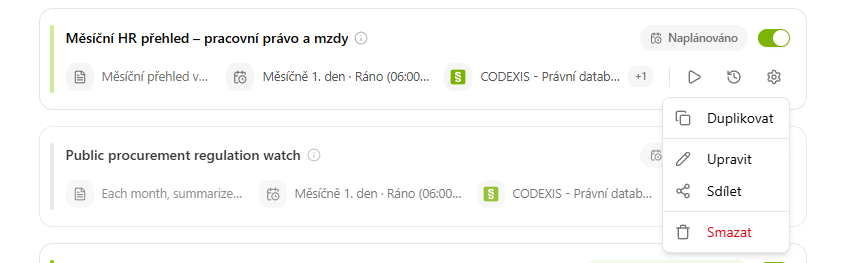
Each automation in the list has its own controls:
- Active toggle — turns the scheduled runs on/off.
- Run (▶) — runs the automation immediately, outside its schedule.
- History (⟲) — shows previous runs and their results.
- Settings (⚙) — opens a menu with Duplicate, Edit, Share and Delete.