

5. Shared folders
What it is: Shared folders connect CODEXIS AI Agent to your company storage — your company data becomes a direct part of the chat. The AI then works with documents where they actually live, with no manual downloading and uploading of attachments and with results saved straight back to your storage. You can connect three types of providers: Network drive (SAMBA), OneDrive and SharePoint.
Where to find it: In the left menu under Shared folders, then use the Add shared folder button.
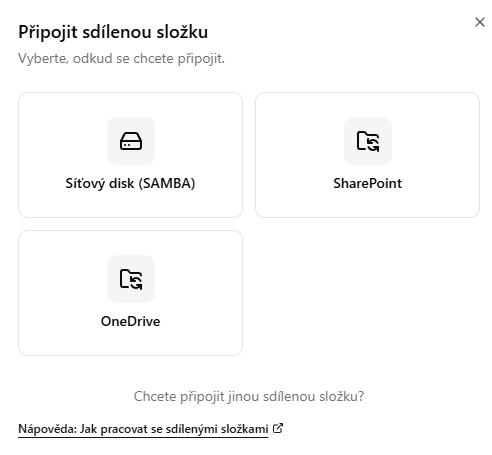
Providers
A detailed guide for each provider is available on its own page:
- Network drive (SAMBA) — a shared folder on a virtual drive directly in CODEXIS AI Agent, which you can share with colleagues with Read or Read & write permissions and also mount on your own computer as a network drive.
- OneDrive — connect your own OneDrive; the AI sees, reads and edits your files and writes changes back.
- SharePoint — connect specific SharePoint sites (
/sites/…), even several at once.
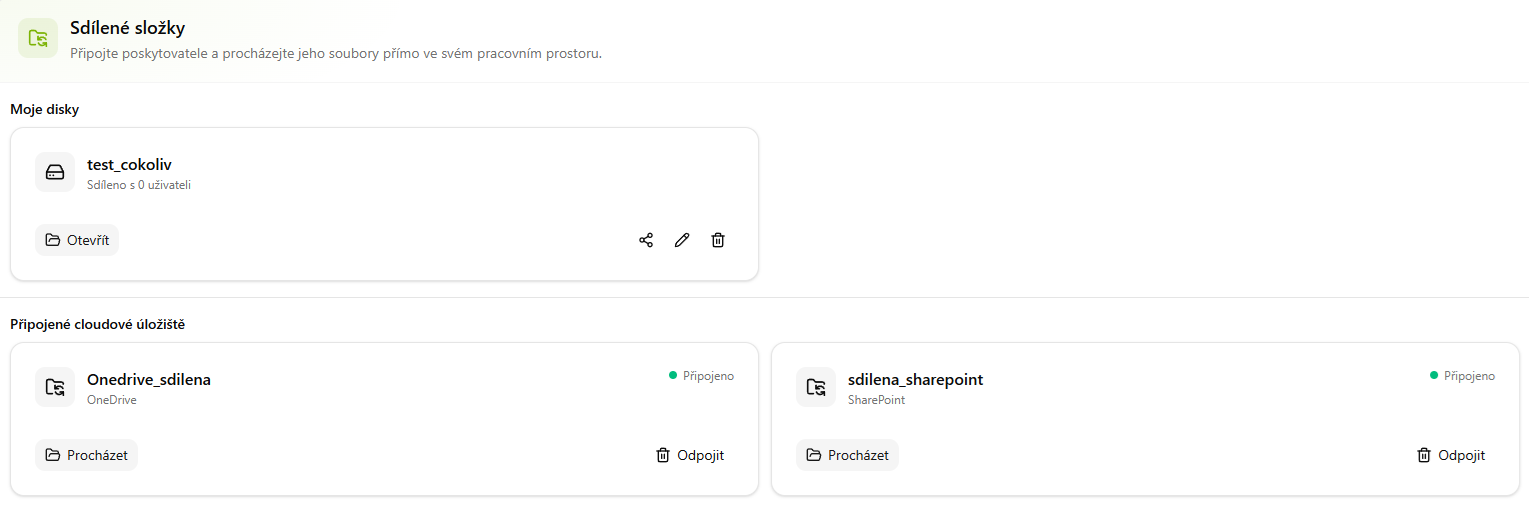
Overview of connected storage
You can see all connections together on the Shared folders page:
- My drives — your network drives (SAMBA). For each one you can see how many users it is shared with, open it in Files and folders with the Open button, and use the icons to share, rename or delete it.
- Connected cloud storage — OneDrive and SharePoint with the Connected status. Use Browse to view the contents and Disconnect to remove the connection.
💡 In practice: Use a network drive (SAMBA) as a team workspace — e.g. for case files that colleagues keep adding to (Read & write) while a supervisor only reviews them (Read). OneDrive and SharePoint come in handy when your documents already live in company storage and you want the AI to work with them right there.