

Projects
A workspace for a matter, its files, conversations, connected folders and automations.
A project is a unit of work in CODEXIS AI Agent. It brings together the materials and conversations for a particular matter, such as a client, a dispute or a contract. This page walks you through the whole sequence: create the project, give it instructions, add the source materials and only then start working in it.
Creating a project
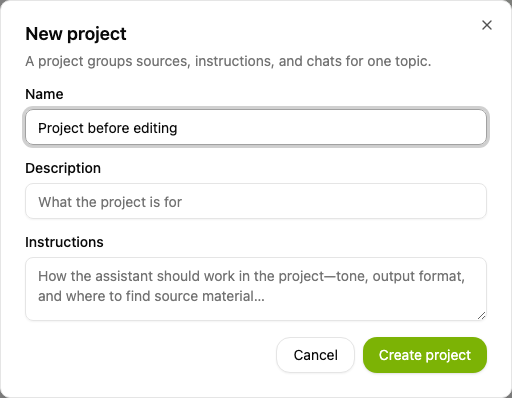
Open Projects in the left menu and choose New project. A dialog opens with three fields:
- Name is how you recognise the project in the list, for example Contracts 2027.
- Description briefly states what the project is for.
- Instructions describe how the AI should work in the project: tone, the format of deliverables or where to take source materials from.
Confirm the dialog with Create project and you land straight in the new project. Only the name is required; you can add the description and instructions later.
Project instructions
The AI receives the instructions as part of the context in every conversation in the project. Use them for rules that apply to the whole matter: which language to answer in, how to structure deliverables or which materials are authoritative.
You can change them any time through Options and Edit project. A project without instructions works as well; its conversations simply receive no extra rules.
Project files
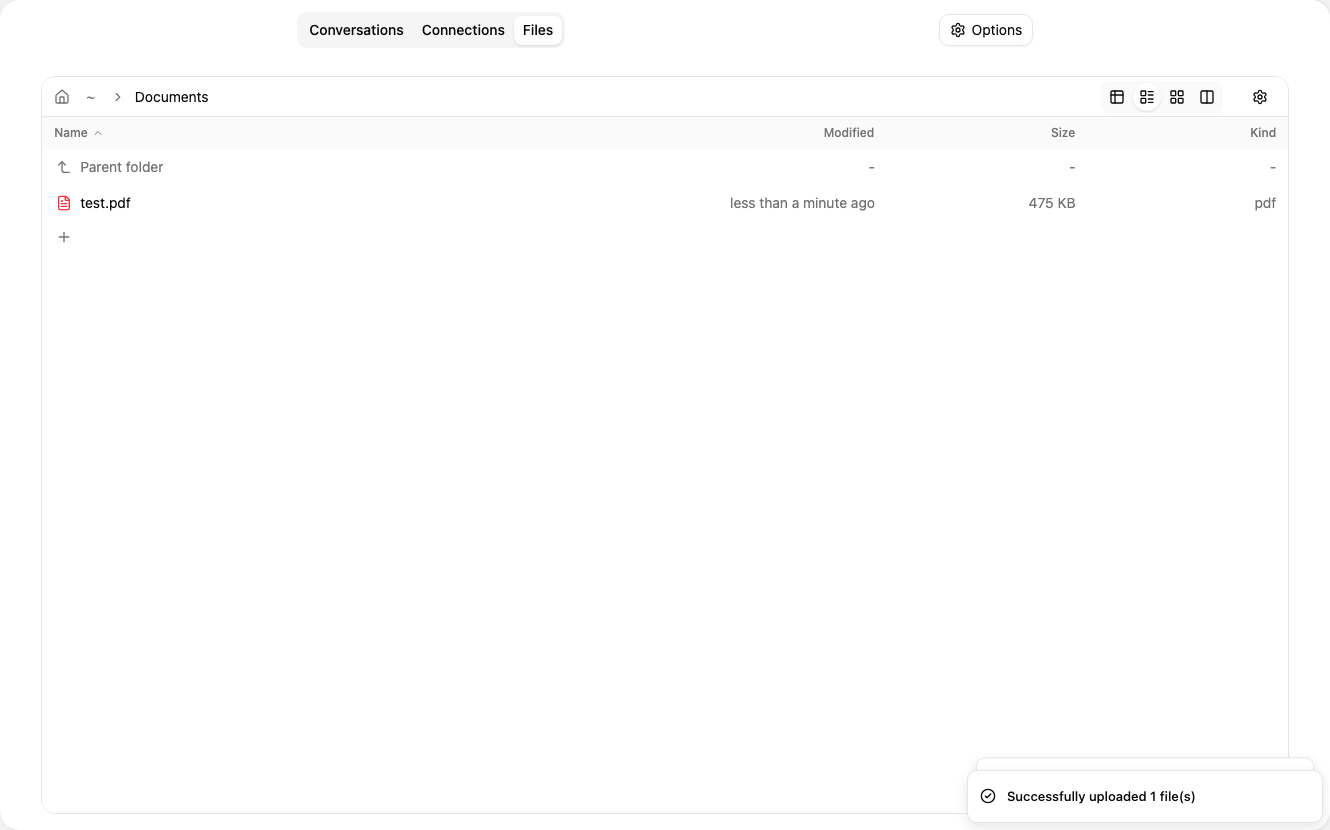
Each project has its own storage. Upload the documents the AI should work with on the Files tab. They serve as source material for every conversation in the project, and the AI can also read files from the project's other conversations.
Connecting folders
Beyond uploaded files, you can bring whole storage locations into the project. The Connections tab has three parts: External storage for OneDrive and SharePoint, Drives in Codexis and Folders from your computer.
If nothing is connected yet, each part shows a prompt for the first connection: Connect storage for external storage and New drive for drives in Codexis. The button opens a dialog where you connect the storage.
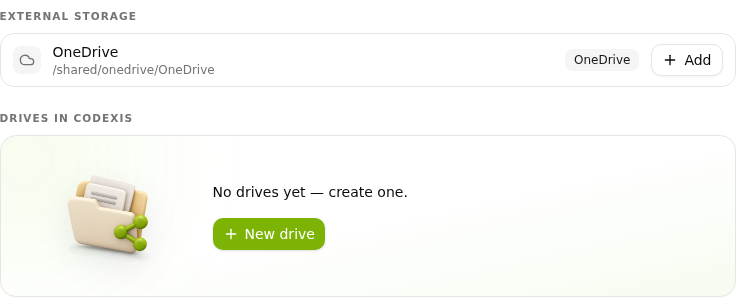
Once you have a connection, the tab offers it as a card and you simply pick what belongs to the project. Add connects the folder to the project; a connected folder shows Added, and Remove on hover.
In the desktop application, the Folders from your computer part lets you add folders from your own machine with Select folders. Only the paths are stored in the project, not the contents, so they are available only while the computer is running with the desktop application on. New conversations in the project inherit this selection.
Automations and add-ons
You can assign an automation to a project. Each run creates a conversation in that project, so the AI works with its instructions and project materials. This lets you schedule a regular summary of the matter, for example.
Conversations in the project can use installed add-ons and their skills. They add register lookups or document processing, for instance.
Conversations in a project
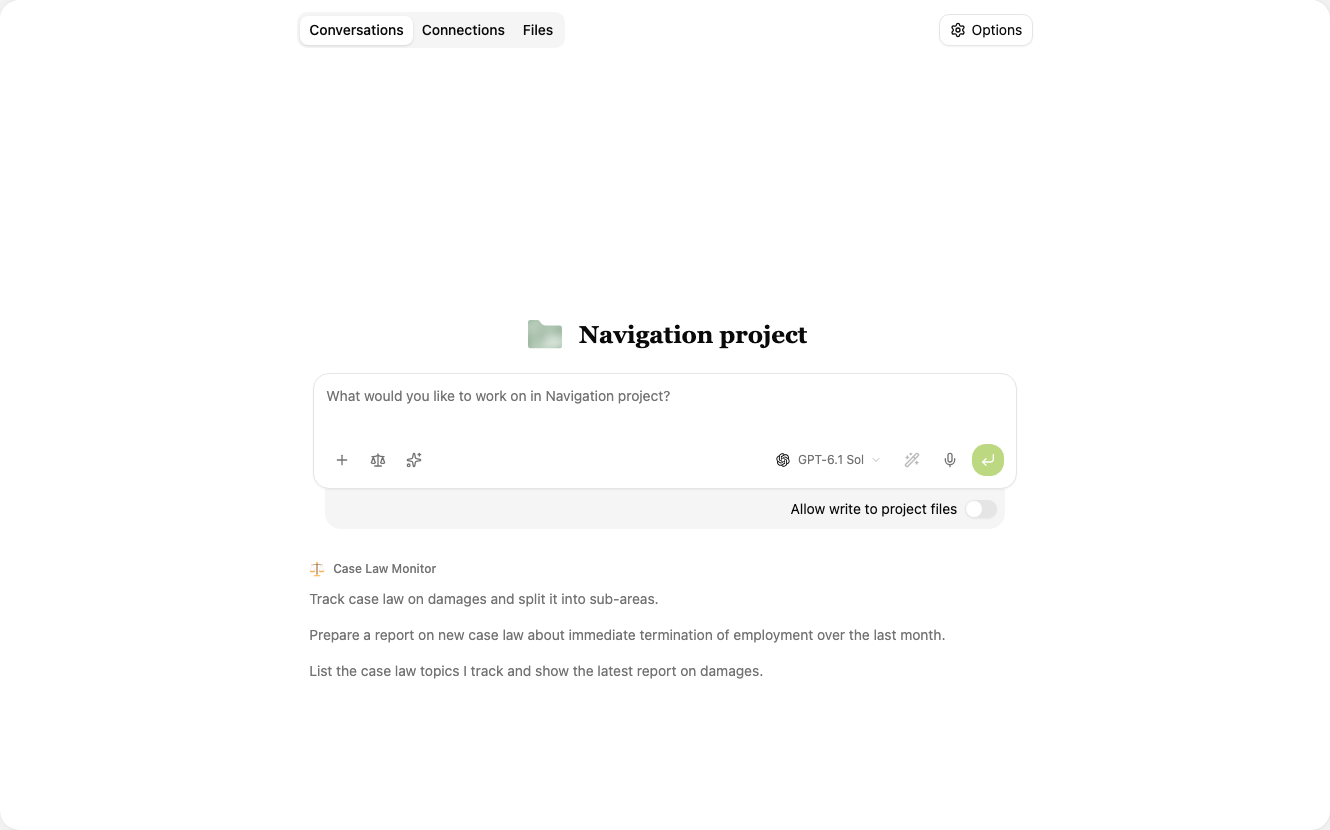
Once the project has instructions and materials, start working. Enter your task in the field on the Conversations tab. The AI has the project instructions, its files and the connected folders available.
You can have several conversations in one project. For a contract, you can handle the review of source materials, the draft wording and the other party's comments separately while still using the same project files. Earlier conversations are listed under the input field in History.
Keeping projects apart
Each project has its own file storage and its own instructions. A conversation gets access to the materials of its project and to the files of the project's other conversations. This separation protects the working data of each matter and keeps every client's documents in the right project.
Connected folders define how much data is shared. If you connect the same shared folder to several projects, you work with the same files in all of them. Editing such a file affects every project the folder is connected to.
Next steps
The next chapter, Conversation, explains how to submit a task and work with the response.
For details on connecting storage, see Connecting storage and drives. For recurring tasks, continue to Automations. To explore extensions, see Add-ons.