

Library
Keep reusable reference materials in one place and work with them across all your chats and projects.
Use the Library to store materials you refer to repeatedly, such as company policies, contract templates or price lists. The assistant can read its contents in all your chats and projects.
Open the library
In the left sidebar, under Tools, click Library. The file browser opens, where you can browse your materials and organise them into folders.
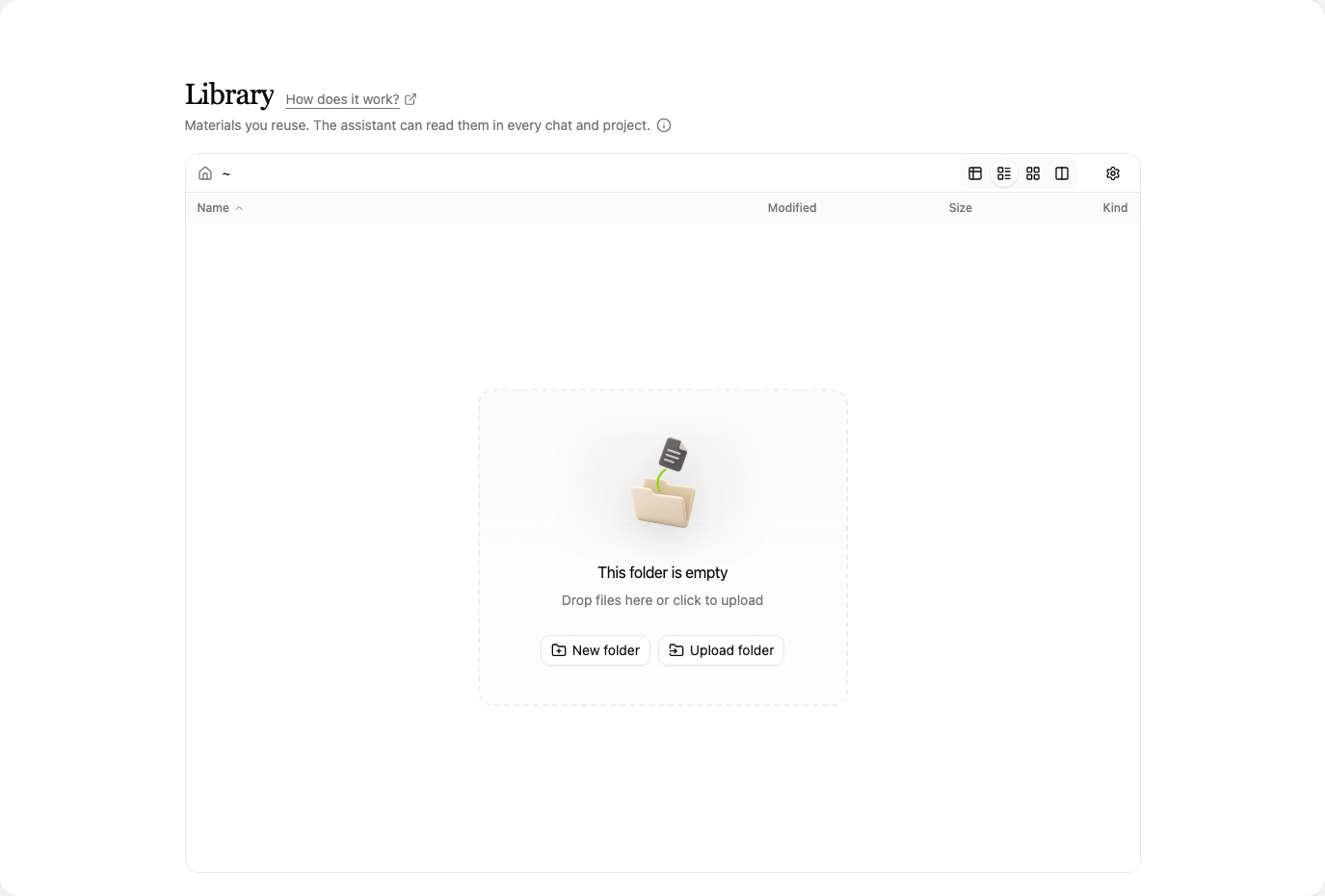
Upload materials
- In the Library, click the + button in the bottom left corner.
- Choose Upload files and select files from your computer. To upload an entire folder, choose Upload Folder.
- Once uploaded, the materials appear in the Library folder you currently have open.
You can also drag files from your computer into the file browser. Choose New Folder to create a folder for more materials.
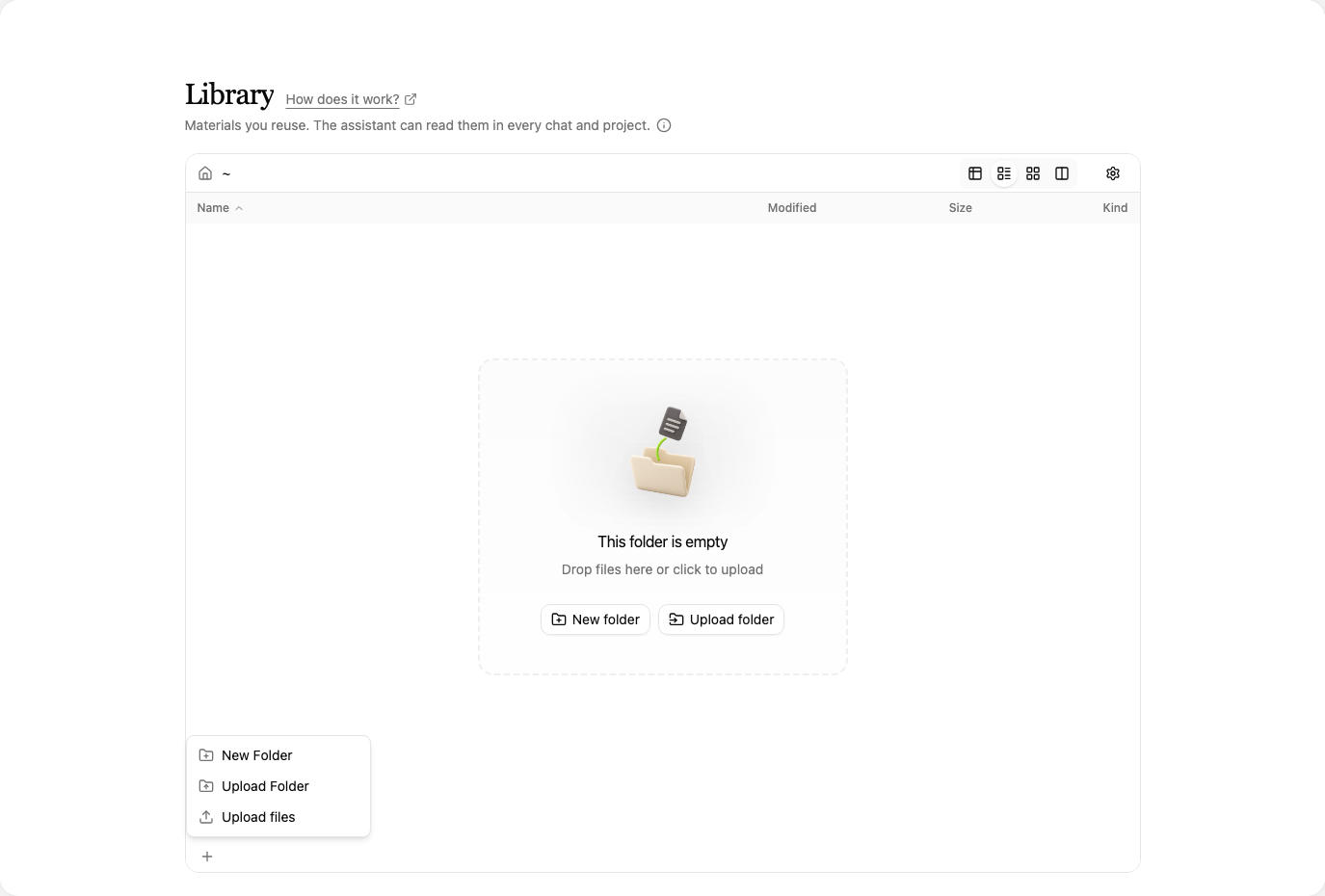
Use materials in a chat
In a chat, tell the assistant which material to use and what you need from it. Include the file name so it can select the right document. For example: “Using the Travel policy in my library, prepare a list of documents needed for a business trip expense claim.”
Chats have read-only access to the Library. Manage your materials directly in the Library; changes take effect immediately across all chats and projects. You can also find this information under the i icon beside the Library description.
Next steps
Continue with the guide to starting a new chat or organise related work into projects.