

Files and folders
Work with files and folders in CODEXIS AI: uploaded documents, agent outputs, content analysis and export.
What it is: Your storage for files and folders directly within CODEXIS AI. Here you'll find both the files you upload yourself and the outputs the application creates (e.g. AML reports, exports, extracted data). You can then work with the files further — ask questions about them, have data extracted from them, or export them.
Where to find it: In the left-hand menu under Files and folders.
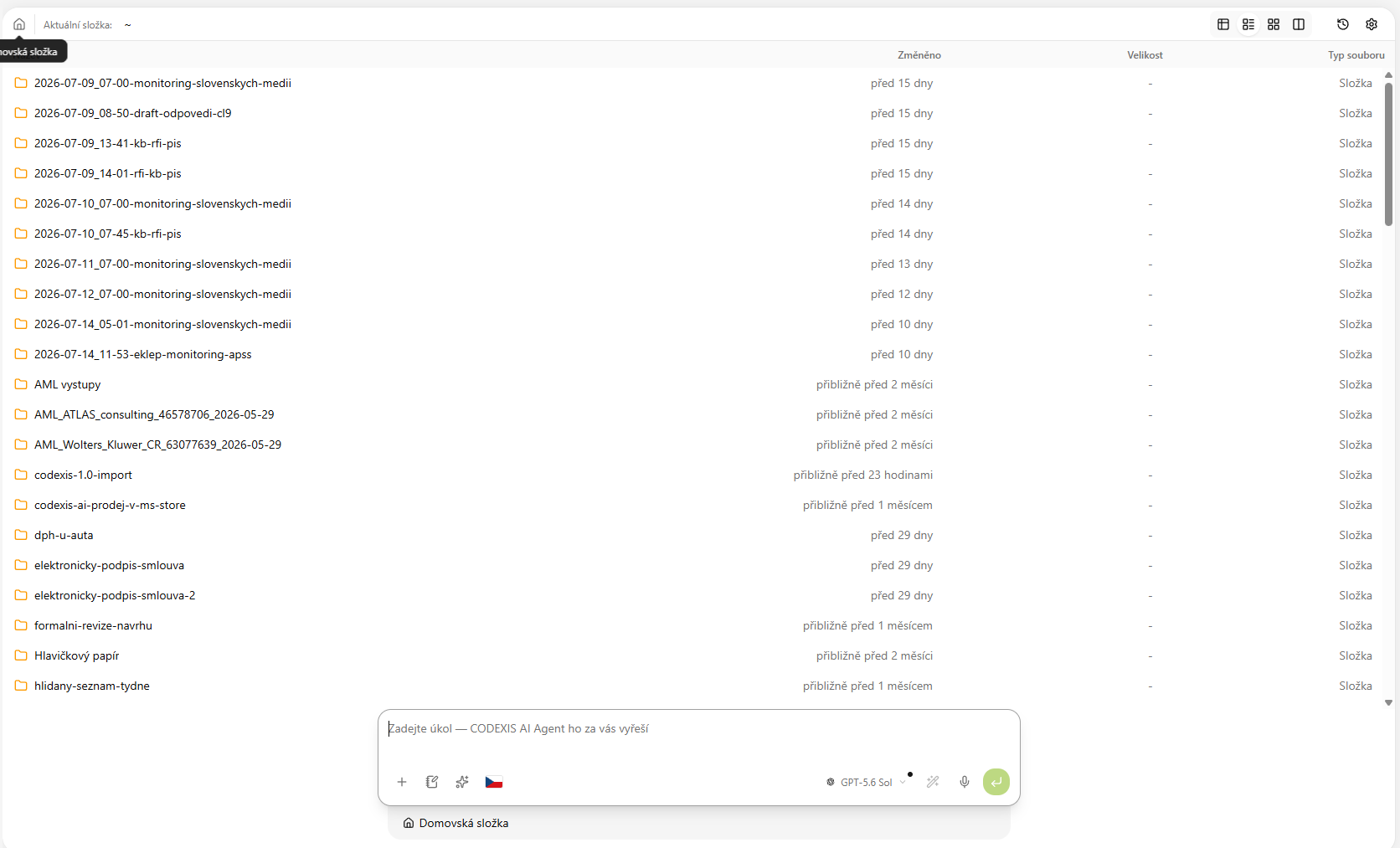
Browsing files
- At the top you can see the Current folder (the home folder is marked with
~) and you can move around it just like in an ordinary file manager. - The contents are shown in an overview with the columns Name, Modified, Size and File type, so you can quickly tell folders apart from individual documents.
- In the top right you switch the view (table, list, tiles, split panel), open the history and the settings.
Extracting data into a table
A handy feature for bulk processing of documents — you can have structured data pulled from selected files into a table:
- Run extraction — CODEXIS AI goes through the selected files and pulls out the required information.
- Add column — you decide for yourself what information should be obtained from the documents (each column = one type of information).
- Draft — you can save a table in progress as a draft.
- Export to Excel — you download the finished table as an Excel file.
Working via chat
At the bottom there is the field "Ask Codexis AI" — you can ask questions about the files right away or work with them in plain language (e.g. have a document summarized or compared).
💡 In practice: Extraction is useful when you have dozens of similar documents (contracts, statements, reports) and need to quickly get a clear table out of them — for example for further processing in Excel.