

Insolvency Watchdog
Insolvency Watchdog continuously monitors the Czech insolvency register ISIR and alerts you to new and changed insolvency proceedings of the companies and people you watch.
Insolvency Watchdog continuously monitors the Czech insolvency register (ISIR). You add a company by its IČO or a person by name and date of birth, and the watchdog checks every day for new and changed insolvency proceedings. It alerts you to every change in the app or by e-mail. On this page you switch the watchdog on, add your first subject and set up notifications.
Czech application
Insolvency Watchdog works with the Czech insolvency register ISIR (isir.justice.cz). It therefore monitors insolvency proceedings conducted in the Czech Republic, for companies with a Czech IČO and people in Czech insolvencies.
1. Install the plugin
The app comes with the Czech Insolvency Watchdog plugin:
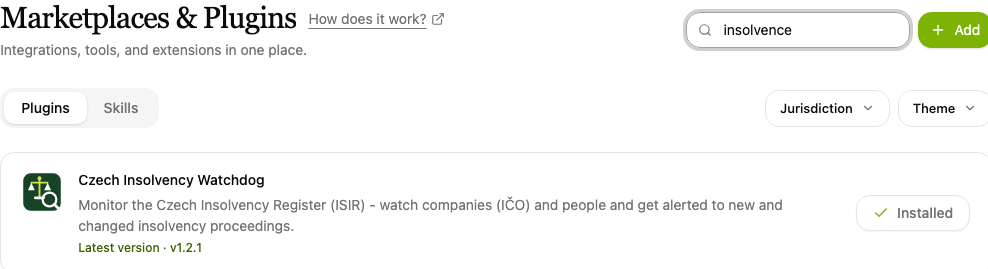
- Open Plugins in the left-hand menu.
- Type "insolv" into the Search plugins… box and find the Czech Insolvency Watchdog item.
- Click Install. An installed plugin shows Installed beside its name.
2. Open the app
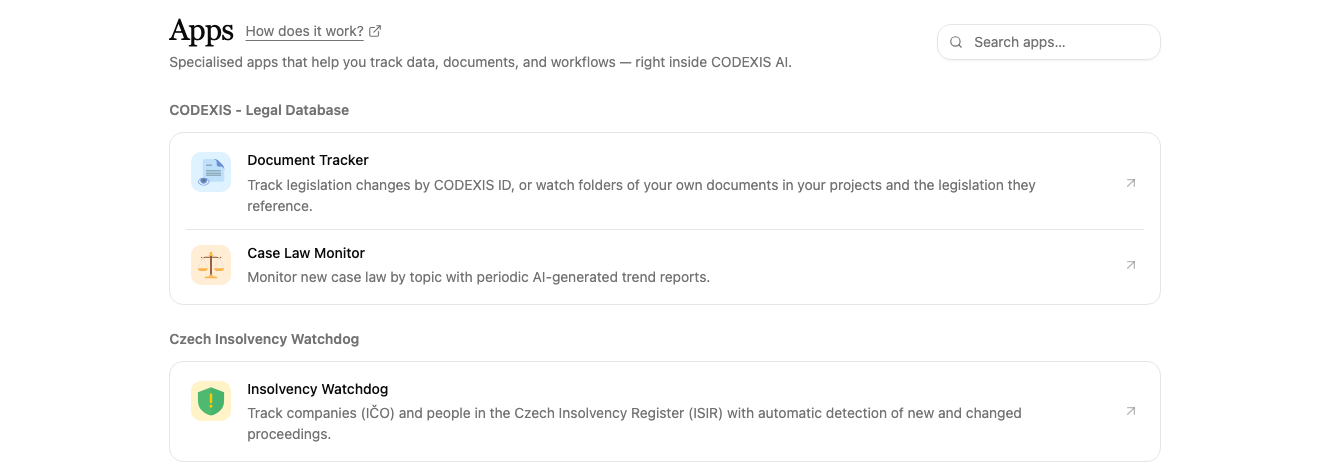
Open Apps in the left-hand menu. In the Czech Insolvency Watchdog section, click the Insolvency Watchdog item.
3. Add a subject to watch
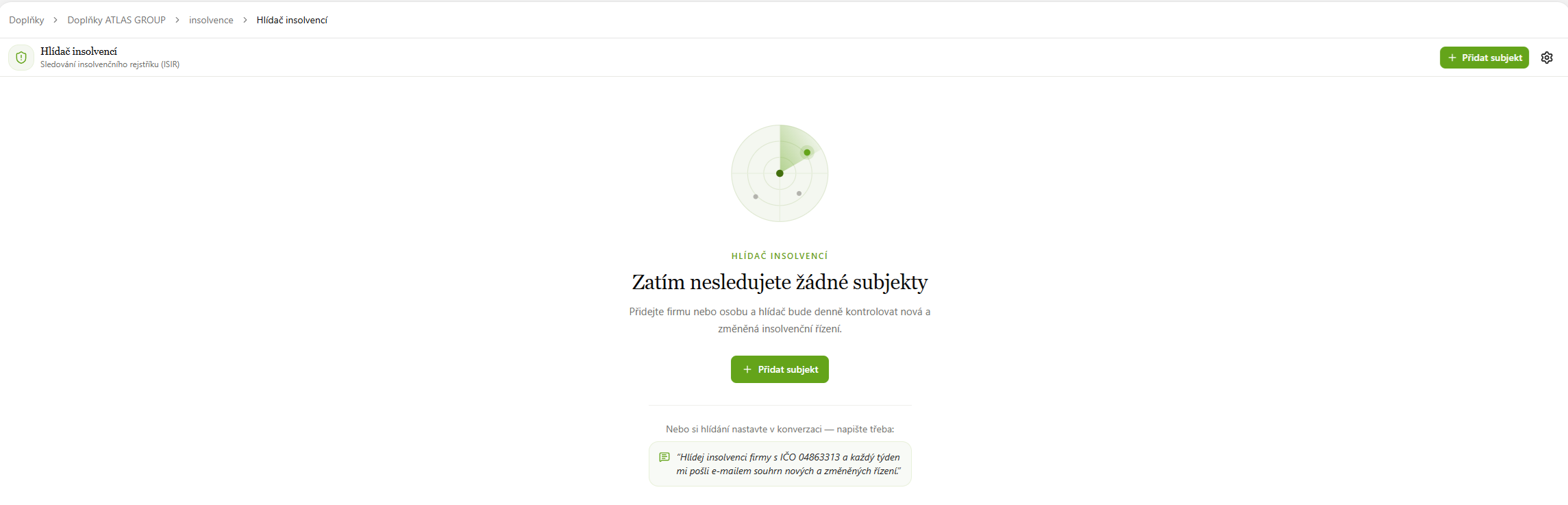
Until you watch anything, you see a welcome screen saying you are not watching any subjects yet. Click Add subject.
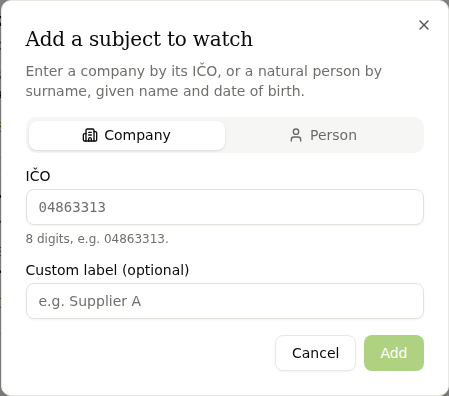
In the Add a subject to watch dialog you choose who to watch:
- Company: enter the IČO (8 digits, for example 04863313). Optionally add a Custom label (for example "Supplier A") under which you will see the subject in the overview.
- Person: enter the surname, given name and date of birth.
Save the subject with Add.
You can also do it from the chat
You can set up watching in the chat as well. Write for example: "Watch the insolvency of the company with IČO 04863313 and send me a weekly e-mail summary of new and changed proceedings."
4. Follow the status of your subjects
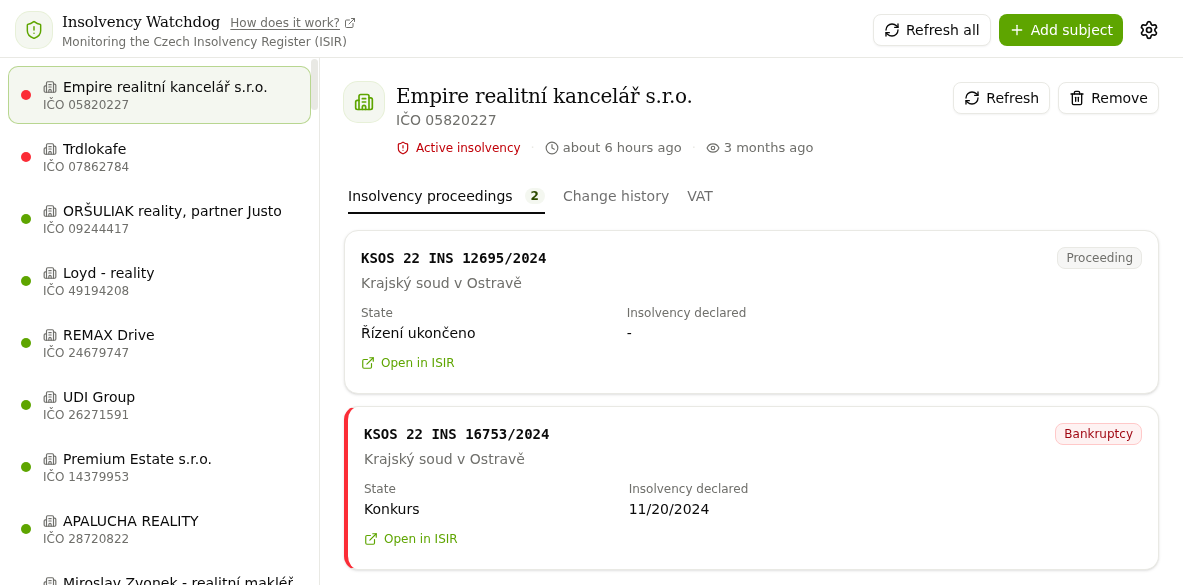
The panel on the left lists all the subjects you watch. A coloured dot next to each one shows its status:
- red: the subject has an active insolvency proceeding,
- green: the subject has no insolvency,
- grey: the proceeding is closed.
Clicking a subject opens its detail with the Insolvency proceedings, Change history and VAT tabs. For each proceeding you see the case number, the court, the status (for example bankruptcy), the date insolvency was declared and an Open in ISIR link that leads straight to the proceeding in the insolvency register.
Refresh checks the current status of a single subject, Refresh all checks all of them at once. Remove stops watching a subject.
5. Set up notifications
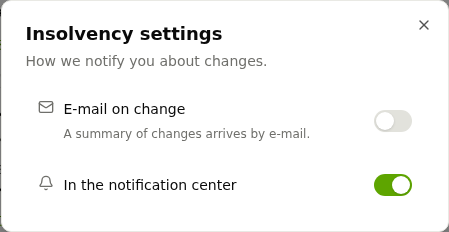
Click the gear icon in the top-right corner. In Insolvency settings you choose how the watchdog alerts you to changes:
- E-mail on change: a summary of changes arrives by e-mail. Once it is on, you can add further recipients, such as a colleague who handles the agenda with you.
- In the notification center: alerts appear directly in CODEXIS AI Agent.
By default the watchdog checks the register once a day. Watching runs as an automation, so you can change how often it checks in Automations, see chapter 8. Automations.
Add your business partners, debtors or counterparties and you no longer have to check the insolvency register by hand. New filings of the companies you watch are tracked by the Collection of Deeds app.